GIFs are everywhere — from social media to presentations, they add a dynamic and fun element to any content. Converting a video into a GIF is a popular way to share brief, looping animations that capture attention. Whether you're creating a meme, a reaction GIF, or a marketing visual, converting video into GIF format is easier than ever. In this post, we'll walk through different ways to convert video to GIF, including software for PC, online tools, and phone apps, as well as why Wondershare DemoCreator stands out as the best tool for high-quality GIF creation.
In this article
Part 1: PC Tools for Converting Video to GIF
If you're looking for greater control over the conversion process and want professional-quality output, desktop software is often the best choice. Here are some of the best tools available for Windows and macOS:
1. Wondershare DemoCreator
Wondershare DemoCreator is a powerful tool for converting videos to high-quality GIFs on both Windows and macOS. It offers a seamless conversion process with advanced editing options like text addition, transitions, and effects. Unlike many online tools, DemoCreator allows full customization of frame rates, resolution, and GIF size, ensuring professional results. Whether you're creating GIFs for social media, tutorials, or presentations, DemoCreator provides all the tools you need for precise, high-quality GIF creation.
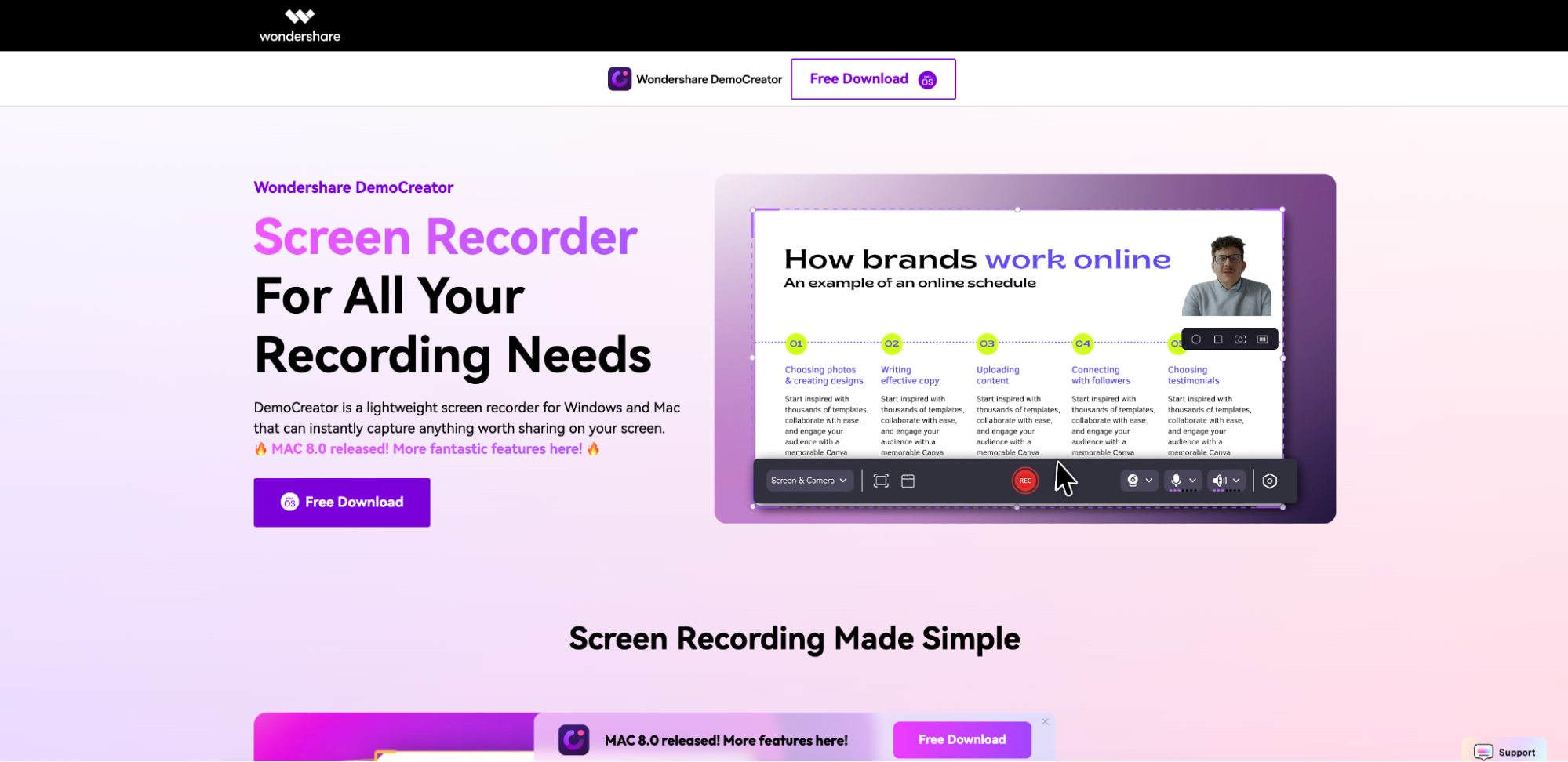
Platform: Windows, macOS
Key features
- Advanced Editing Tools: Allows for text addition, transitions, and effects in GIFs and videos.
- High-Quality Output: Supports exporting high-resolution GIFs with customizable frame rates and sizes.
- Multiple Format Support: Converts various video formats (MP4, MOV, etc.) to GIF and vice versa.
- User-Friendly Interface: Easy-to-use interface suitable for both beginners and professionals.
- Real-Time Preview: View your GIF in real-time before exporting, ensuring perfect results.
Why Use It: Ideal for professional GIF creation with editing options like adding text, transitions, and effects.
2. GIMP (GNU Image Manipulation Program)
GIMP (GNU Image Manipulation Program) is a free and open-source software that allows users to convert videos into high-quality GIFs. It provides extensive editing features, including frame-by-frame adjustments, which is ideal for users seeking full control over their GIF creation. With GIMP, you can fine-tune every aspect of your GIF, from frame rates to resolution, for a professional result. Available on Windows, macOS, and Linux, GIMP is a versatile and powerful tool for converting and editing GIFs, making it an excellent choice for advanced users.
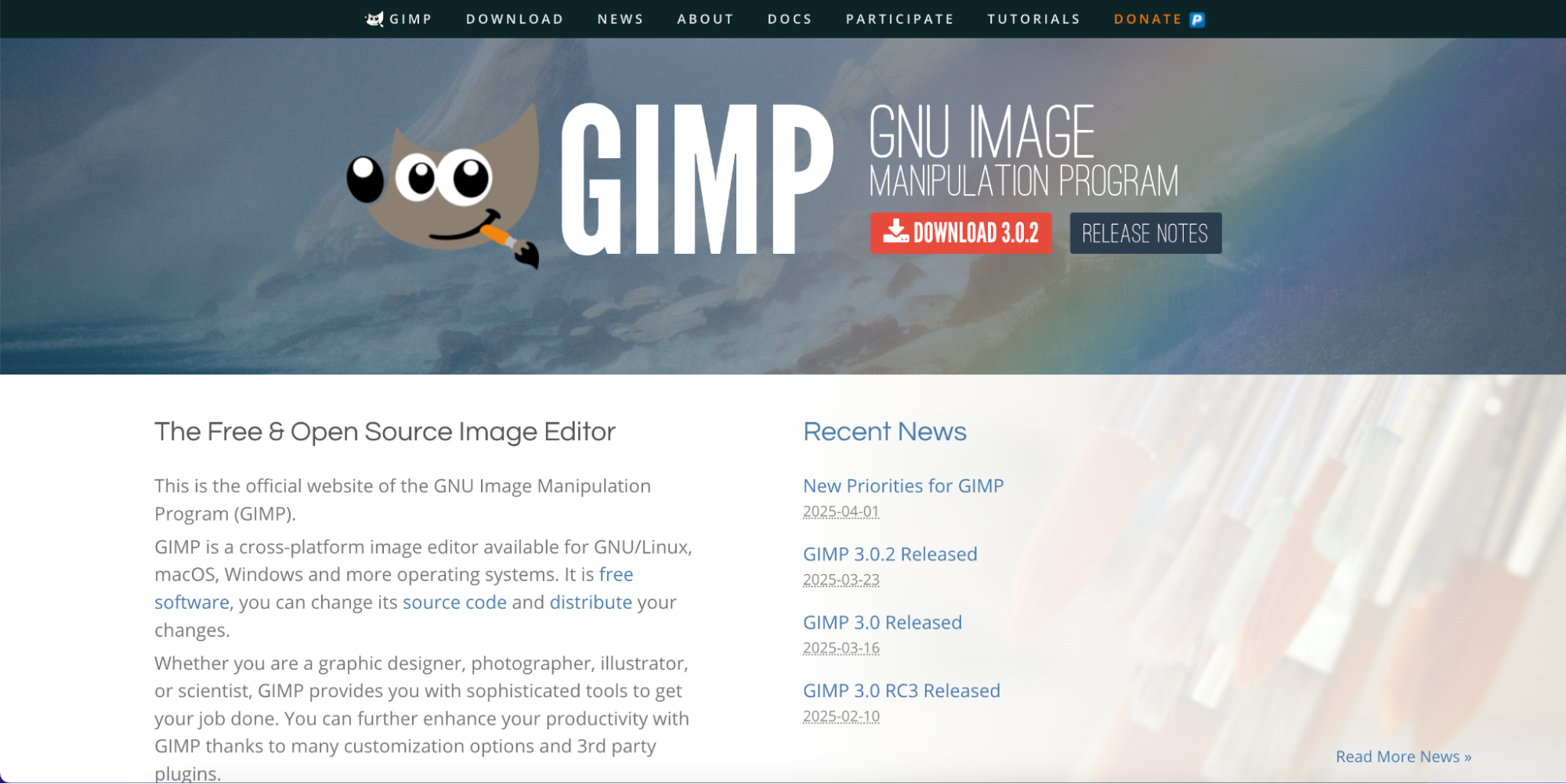
Platform: Windows, macOS, Linux
Key Features
- Free and Open-Source: No cost and accessible to everyone, with a large community of contributors.
- Frame-by-Frame Editing: Allows for precise editing of each frame in the GIF.
- Layer-Based Editing: Supports layers, making it easier to adjust and manipulate individual frames.
- Customizable GIF Settings: Control frame delay, GIF looping, and optimization.
- Supports Multiple File Formats: Can work with various image and video formats for conversion to GIF.
Why Use It: Offers full control over editing and frame-by-frame GIF creation. Best for users who want detailed customization.
3. Movavi Video Converter
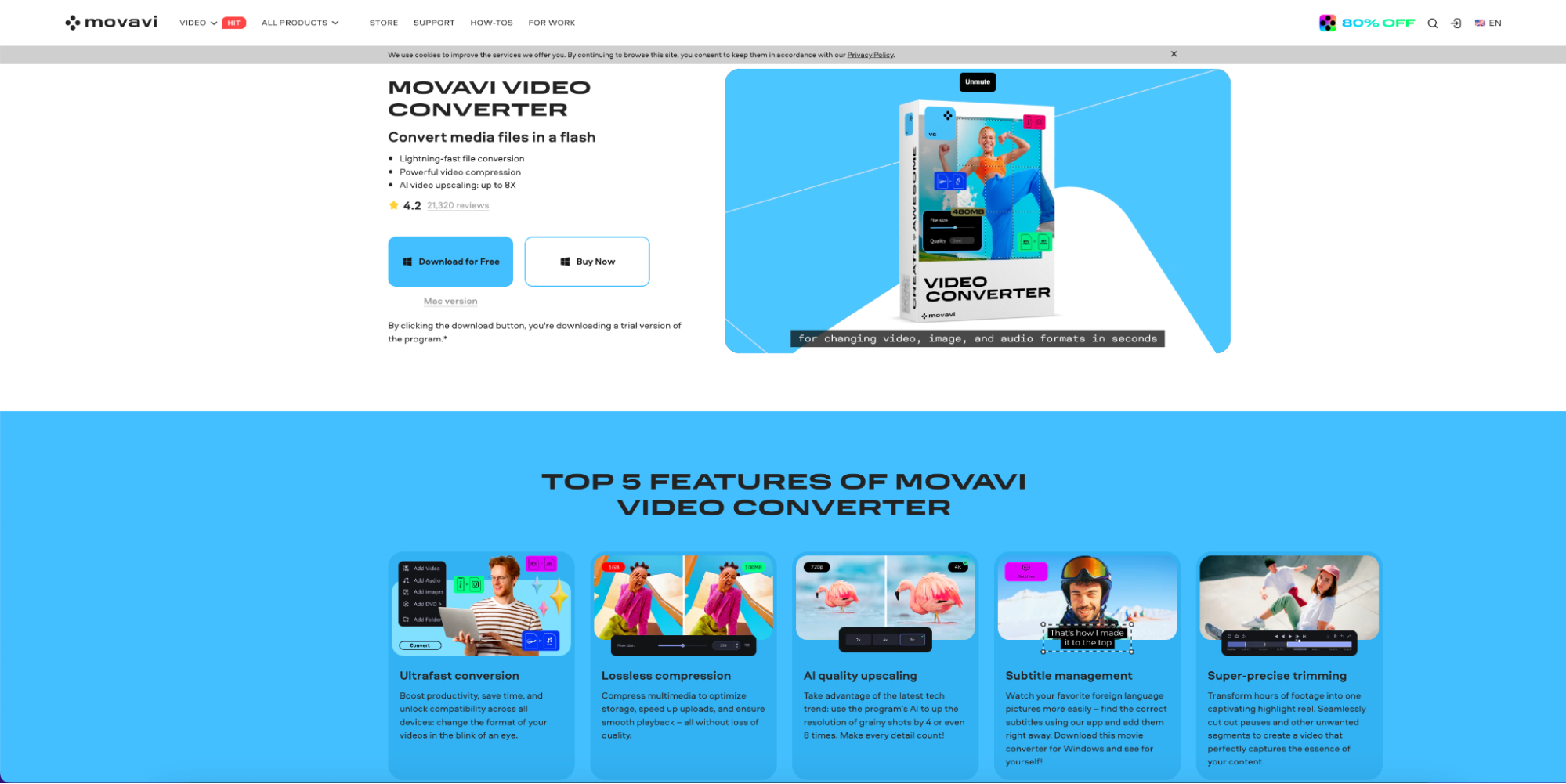
Movavi Video Converter is an easy-to-use software that allows you to quickly convert videos into high-quality GIFs. It supports a wide range of video formats, including MP4, AVI, and MOV, making it versatile for various conversion needs. With Movavi, you can adjust GIF parameters like frame rate and resolution, ensuring optimal quality. Its intuitive interface and fast conversion speed make it a great choice for both beginners and professionals looking to create GIFs efficiently.
Platform: Windows, macOS
Key Features
- Fast Conversion: Converts video files to GIFs quickly without compromising quality.
- Wide Format Support: Supports a variety of input and output formats, including MP4, AVI, and GIF.
- User-Friendly Interface: Simple and intuitive design, making it easy for beginners to use.
- Batch Processing: Allows you to convert multiple files at once, saving time.
- Customizable GIF Settings: Offers options to adjust frame rate, resolution, and file size for optimal output.
Why Use It: A user-friendly tool for quick, high-quality MP4 to GIF conversions with minimal setup.
Part 2: Online Tools for Converting Video to GIF
1. EZGIF
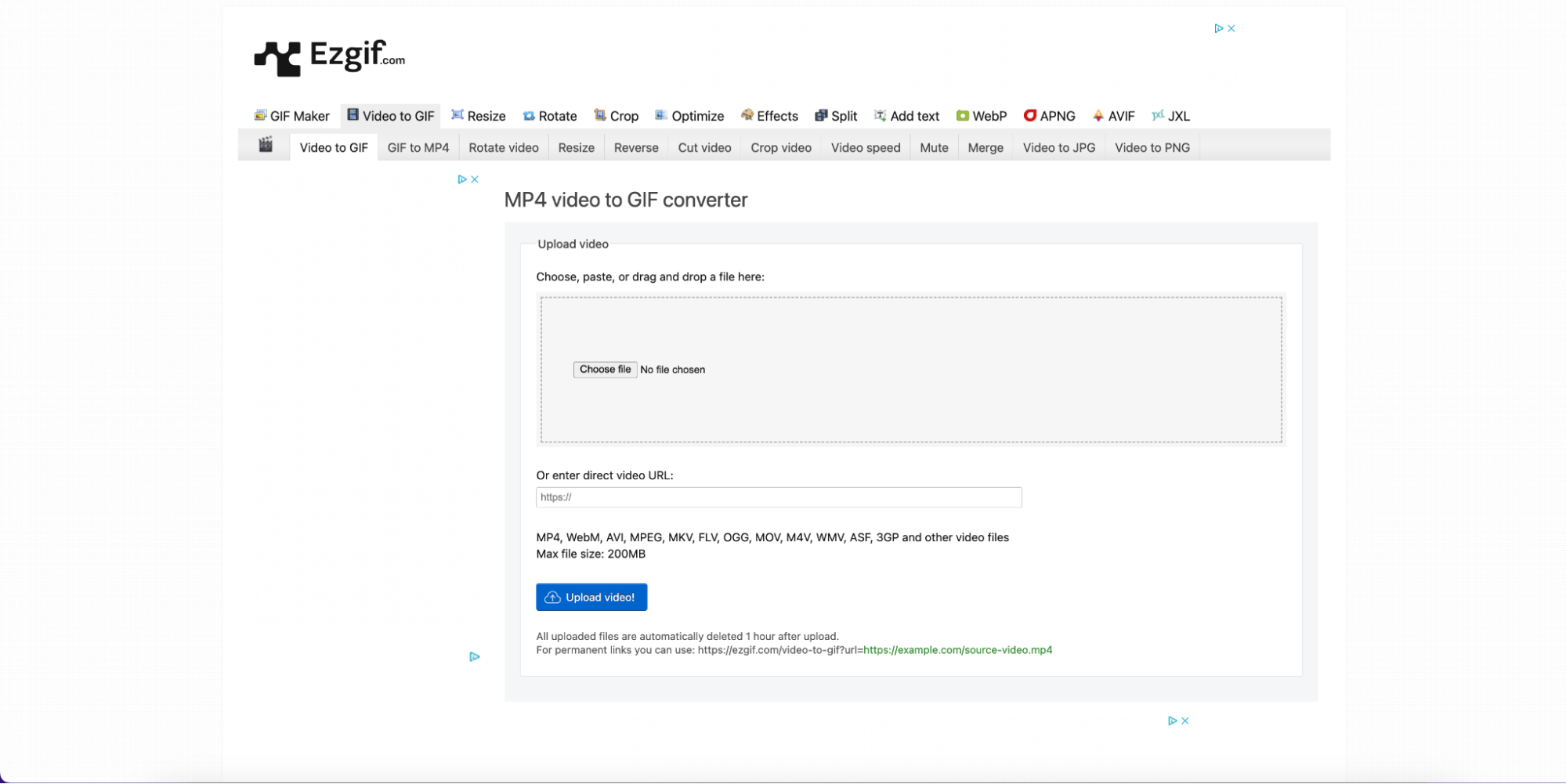
EZGIF is a popular, web-based tool that provides a fast and simple way to convert videos into GIFs. It offers a wide range of editing features such as resizing, cropping, and adding text to your GIFs, all in a user-friendly interface. With no need for account creation, EZGIF is ideal for quick conversions and basic customizations. It supports various formats, including MP4, AVI, and MOV, making it versatile for different video sources. EZGIF is perfect for those looking for an easy, hassle-free method to create GIFs online.
Platform: Web-based
Key Features
- Fast and Free Conversion: Quickly converts video files (MP4, AVI, etc.) into GIFs without requiring sign-up.
- Basic Editing Tools: Includes features like resizing, cropping, adding text, and applying special effects (e.g., grayscale, blur).
- Customizable Frame Rate: Adjust the frame rate and delay time for smoother or faster GIFs.
- Multiple Format Support: Supports various video formats, including MP4, MOV, AVI, and more.
- No Watermark: Offers a free version without watermarks on the converted GIFs.
Why Use It: Quick and simple, with additional options like resizing and optimizing GIFs.
2. Convertio
Convertio is a versatile online tool that makes converting videos to GIFs simple and efficient. It supports a wide range of video formats, including MP4, AVI, and MOV, and allows for customization of output settings such as resolution and frame rate. Convertio offers cloud storage integration, enabling users to upload files directly from platforms like Google Drive and Dropbox. Its user-friendly interface and batch processing feature make it an excellent choice for quick conversions and multiple files at once. With Convertio, you get high-quality GIFs with minimal effort.
Platform: Web-based
Key Features
- Supports Multiple Formats: Converts a wide range of video and image formats to GIF, including MP4, MOV, AVI, JPEG, and more.
- Cloud-Based Conversion: Enables conversion directly from cloud storage platforms like Google Drive and Dropbox.
- Batch Conversion: Allows converting multiple files at once, making it easier to handle large projects.
- Customizable Output Settings: Adjust resolution, frame rate, and file size for your GIF to optimize its quality and performance.
- No Software Installation: Web-based tool that doesn't require software installation, offering convenience for quick conversions.
Why Use It: Allows quick conversion from video to GIF with customization options like resolution and frame rate.
3. Giphy GIF Maker
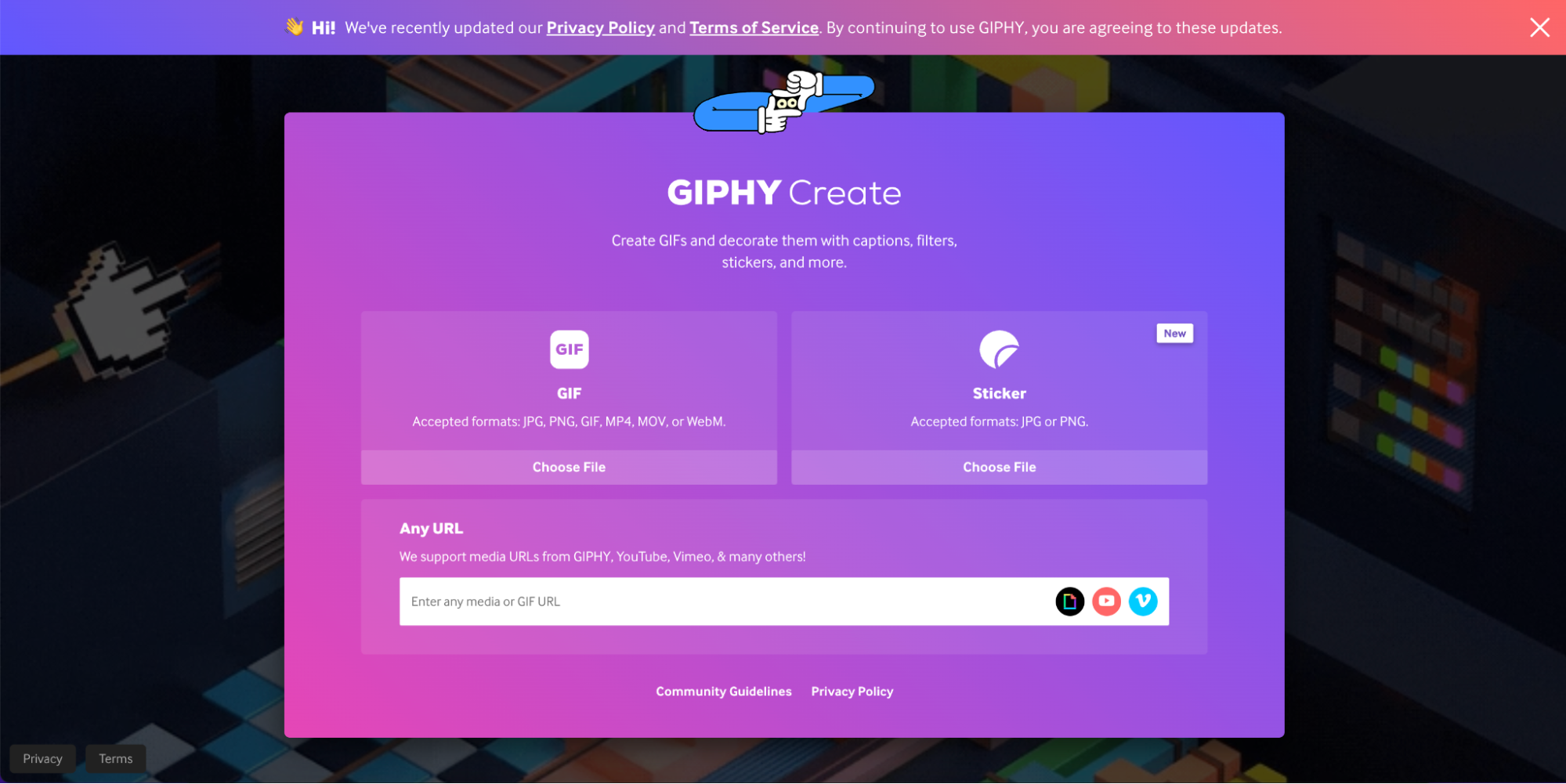
Giphy GIF Maker is a popular and easy-to-use online tool that allows users to convert videos or images into GIFs. It offers a straightforward interface where you can upload videos or paste URLs to generate GIFs quickly. In addition to simple GIF creation, Giphy also lets you add text, stickers, and other effects, making it perfect for creating fun and engaging GIFs for social media. As a widely recognized platform, Giphy also provides easy sharing options, allowing you to directly post your GIFs across social media platforms.
alt name: giphy
image name:video-into-gif-6
Platform: Web-based
Key Features
- Create GIFs from Videos and URLs: Easily convert videos or URLs into GIFs by uploading or linking content.
- Text and Sticker Addition: Add customizable text, stickers, and emojis to your GIFs for personalization.
- Simple Interface: User-friendly, intuitive design, making it quick and easy to create GIFs.
- Social Media Integration: Directly share created GIFs on social media platforms like Instagram, Twitter, and Facebook.
- Search Functionality: Search for trending GIFs or templates to create your own GIFs based on popular content.
Why Use It: Popular for meme creation, offering simple GIF creation with fun editing tools.
Part 3: Phone Apps for Converting Video to GIF
1. GIF Maker - ImgPlay
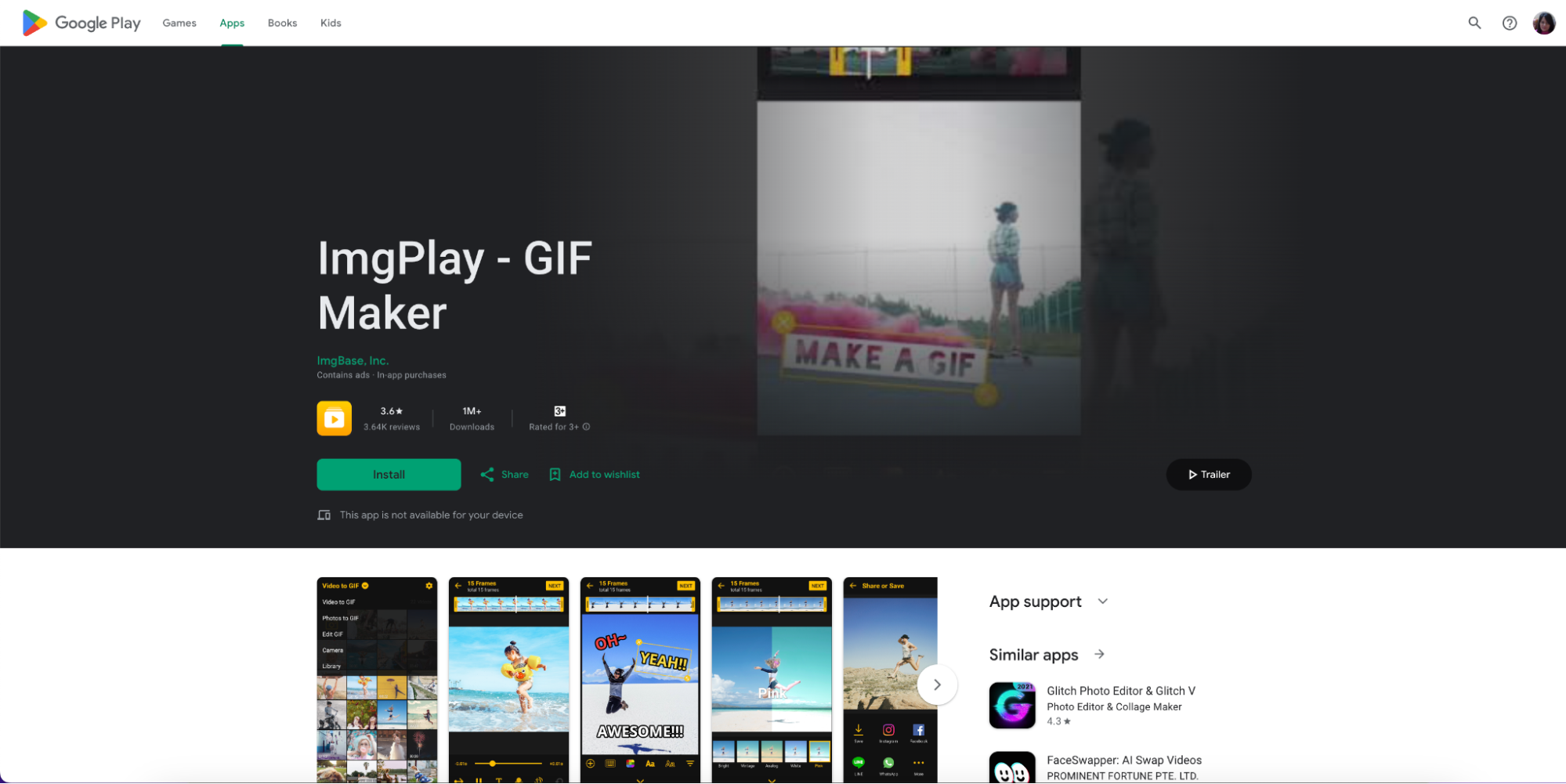
GIF Maker - ImgPlay is a user-friendly mobile app available on both iOS and Android, designed for quick and easy GIF creation. It allows you to convert video clips or photos into GIFs with just a few taps. ImgPlay offers customization options such as adding text, adjusting speed, and applying filters to enhance your GIFs. It's perfect for users looking to create GIFs on the go, and its straightforward interface makes it ideal for both beginners and more experienced users. Whether for fun or creative projects, ImgPlay offers the flexibility you need to make engaging GIFs.
Platform: iOS, Android
Key Features
- Convert Videos and Photos to GIFs: Easily create GIFs from both video clips and photos.
- Add Text and Stickers: Customize your GIFs with text overlays and fun stickers.
- Adjust Speed: Control the speed of your GIF for dynamic animations.
- Apply Filters and Effects: Enhance your GIFs with various filters and visual effects.
- User-Friendly Interface: Simple and intuitive design for quick and easy GIF creation on mobile devices.
Why Use It: Quick conversion with great customization options on mobile.
2. GIF Me! Camera
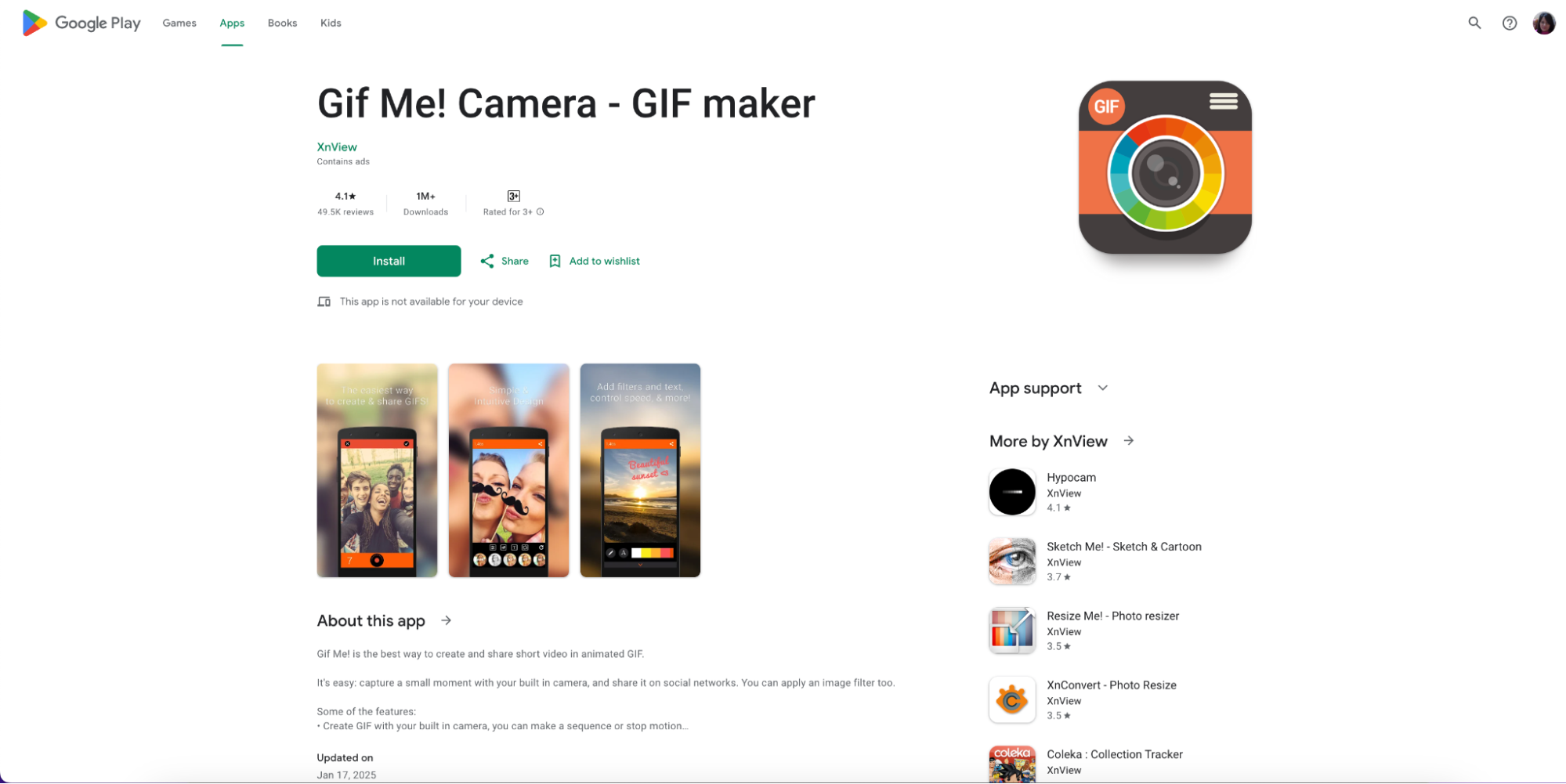
GIF Me! Camera is a popular mobile app available on iOS and Android that allows you to create GIFs directly from your camera or existing video library. It offers easy-to-use editing tools, including the ability to add text, apply filters, and adjust the speed and frame rate of your GIFs. This app is perfect for users looking to quickly capture moments and turn them into fun, shareable GIFs. With its simple interface, GIF Me! Camera makes GIF creation accessible for everyone, allowing you to make dynamic GIFs with just a few taps.
Platform: iOS, Android
Key Features
- Create GIFs from Camera or Video: Record videos or use your existing video library to create GIFs.
- Add Text and Effects: Personalize your GIFs with text, stickers, and filters.
- Control Frame Rate and Speed: Adjust the frame rate and speed for more dynamic GIFs.
- User-Friendly Interface: Easy to navigate, designed for quick GIF creation on mobile devices.
- Direct Sharing: Share your created GIFs directly to social media platforms or save them to your device.
Why Use It: Easy-to-use mobile app for creating GIFs on the go with basic editing tools.
3. Video to GIF
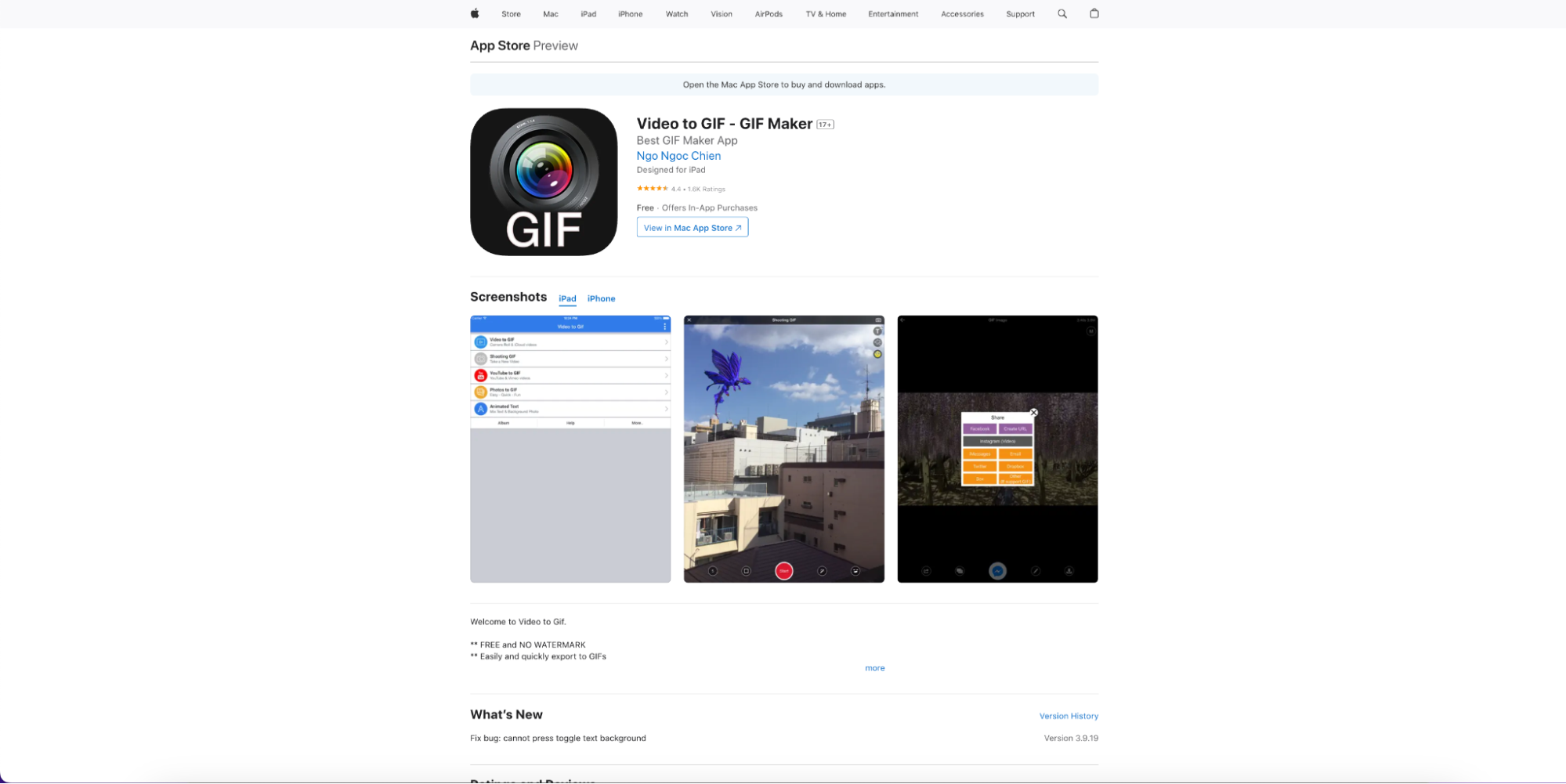
Video to GIF is a straightforward mobile app for Android that allows you to convert video clips into GIFs quickly and efficiently. This app offers simple editing options like adjusting speed and frame rate, making it ideal for users who need a no-frills solution for turning their videos into GIFs. It also lets you trim the video, select the desired portion, and convert it to a high-quality GIF. With its user-friendly interface, Video to GIF is perfect for anyone looking to create GIFs from videos directly on their Android device without complicated tools.
Platform: Android
Key Features
- Convert Videos to GIFs: Easily convert video clips into GIFs directly from your Android device.
- Control Speed and Frame Rate: Adjust the speed and frame rate of your GIF for a smoother or faster animation.
- Trimming Tool: Trim video clips to select only the desired part for conversion into a GIF.
- Simple Interface: Easy-to-use interface that simplifies the conversion process for quick GIF creation.
- No Watermarks: Allows you to create GIFs without any watermarks in the free version.
Why Use It: A no-frills, easy-to-use app for quick video-to-GIF conversions on Android devices.
Conclusion
Converting video to GIF is an excellent way to capture key moments from your videos in a looping, shareable format. Whether you choose an online tool like EZGIF or a desktop solution like Wondershare DemoCreator, there are many options available that cater to different needs and levels of customization. For a simple and fast solution, online tools are perfect, while software like DemoCreator offers more advanced features for professional-quality GIF creation. By understanding the methods and tools available, you can easily start converting your videos into GIFs and share them across social media, presentations, or websites.
FAQs
-
Can I adjust the quality of the GIF during conversion?
Yes, you can adjust the quality of the GIF by selecting the appropriate resolution, frame rate, and file size in tools like Wondershare DemoCreator and some online converters.
-
What is the file size limit for converting video to GIF online?
The file size limit for online conversion tools often varies, with many free tools allowing files up to 100 MB. For larger files, paid versions or desktop software may be required.
-
Can I add text or effects to my GIF during conversion?
Yes, you can add text and apply various effects to your GIF during conversion with tools like Wondershare DemoCreator, EZGIF, and Giphy GIF Maker, providing customization options.
-
What formats can be converted to GIF?
Most online and desktop converters support a variety of video and image formats for conversion to GIF, including MP4, MOV, AVI, JPG, and PNG.