Suppose you shot a beautiful landscape video of mountains, but now you want to convert it to portrait format to post on Instagram as a reel. With many social media platforms favoring vertical formats, mastering the art of adjusting video orientation has become a necessity.
In this article
- Part 1. Why Do You Need To Make Your Horizontal Video Vertical?
- Part 2. 3 Methods to Make a Horizontal Video Vertical
- Part 3. How To Make a Horizontal Video Vertical (or Vice Versa) on DemoCreator?
- Part 4. [Alternatives] How To Make a Horizontal Video Vertical With Quick Operations?
- Part 5. How To Master Converting Horizontal Video to Vertical: Some Important Tips
- Part 6. Frequently Asked Questions
- Conclusion
However, due to the availability of versatile tools, learning the skills has become easier than ever. This guide will break down the methods and top-notch tools on how to make a horizontal video vertical, so keep reading.
Part 1. Why Do You Need To Make Your Horizontal Video Vertical?
Over the past few years, the way content is consumed has undergone significant changes. Instead of big screens, most videos are now being watched on smartphones in the form of Instagram Reels, YouTube Shorts, TikTok, and others. In this section, let’s explore a few additional reasons, beyond this factor, for converting landscape videos to portraits:
- Social Media Compatibility: Social media algorithms prioritize Reels and Short videos over regular post videos. There are high chances that your Reel could reach more people as compared to a horizontal feed video. Therefore, a 9:16 ratio video is better than a 16:9 ratio.
- Attention Span: To immerse the audience fully in the content, the vertical format of the video fills the screen entirely. However, the horizontal videos leave spaces that can be distracting for some people.
- Repurposing Content: Before you learn how to make a horizontal video vertical, know that repurposing content is another key reason for changing orientation. This will enable you to broaden the audience range on platforms like Instagram or TikTok.
- Professional Use: For marketing purposes, your content must appear visually appealing in every aspect. Thus, a vertical video with attention to detail on the right media platforms makes all the difference.
Part 2. 3 Methods to Make a Horizontal Video Vertical
There are many methods to help you if you are thinking about how to make a horizontal video vertical, some of which may or may not suit you. Before we lead into some advanced options, 3 of the most common approaches are discussed in this part:
1. Cropping Videos
It is one of the easiest and most convenient methods, and it works best if the main focus of your image is in the center. You can simply crop the sides of your video to make its ratio 9:16, and it is ideal for social media platforms like Instagram, YouTube, etc. Cropping the videos makes them look cleaner and professional.
2. Adding a Vertical Background
The background method keeps the entire horizontal video visible while placing it within a vertical frame. You have to add a background, like a color, and place your video in the center. Thus, vertical video can be created without cropping any content; instead, it adds to the frame. You can add extra elements like text, logos, or animations above and below.
3. Rotating Video
If you have accidentally filmed a video when you were holding your phone in landscape mode, you can simply rotate it 90 degrees to make it vertical. It is a super-fast fix, and looks good if the rotated version looks natural. After rotating, the canvas usually needs to be adjusted to a vertical size like 1080 x 1920 to fill the screen.
Part 3. How To Make a Horizontal Video Vertical (or Vice Versa) on DemoCreator?
As you already know, there are numerous reasons why horizontal videos should be converted into vertical videos; you only need an efficient tool to perform this task now. Such a tool is Wondershare DemoCreator, which provides you with cloud storage to save all your projects. Besides editing, it allows you to record videos within the software. Users can also manually trim videos to cut short the time frame.
If you’re wondering how to make a vertical video horizontal or vice versa, activating the AI Portrait feature allows you to control the Edge Thickness and Edge Feather. You can also add animations from the many options provided by the software. Its AI Voice Changer can transform the voice in your video into the voices of fictional or cartoon characters.
Key Features
- Video Annotations: Just like PDF files and documents, you can now annotate and add notes in your videos to elaborate on the noteworthy points.
- Resize Video: DemoCreator offers 5 kinds of preset aspect ratios to choose from, but you can still customize it by entering your own numbers.
- Frame Rate: The frame rate of your videos can be set from 15 fps to 120 fps as per your preference from the given options.
- AI Subtitle Generator: This feature generates subtitles in 90 languages and 30 different formats.
Steps to Convert Your Horizontal Video Into a Vertical One Using DemoCreator
Adhere to the steps given below if you’re looking for the answer to how to make a horizontal video vertical with DemoCreator:
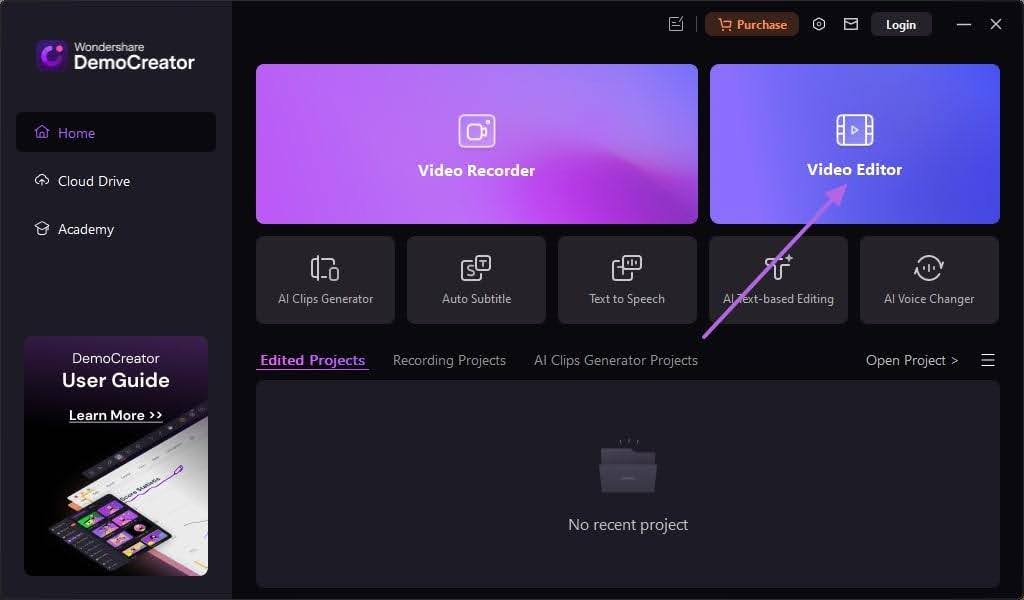
Step 1Open the Tool and Import the Horizontal Video
Click the “Video Editor” tool in the right corner of the main interface of the tool. Tap the “+” icon to import the video you want to edit at the end.
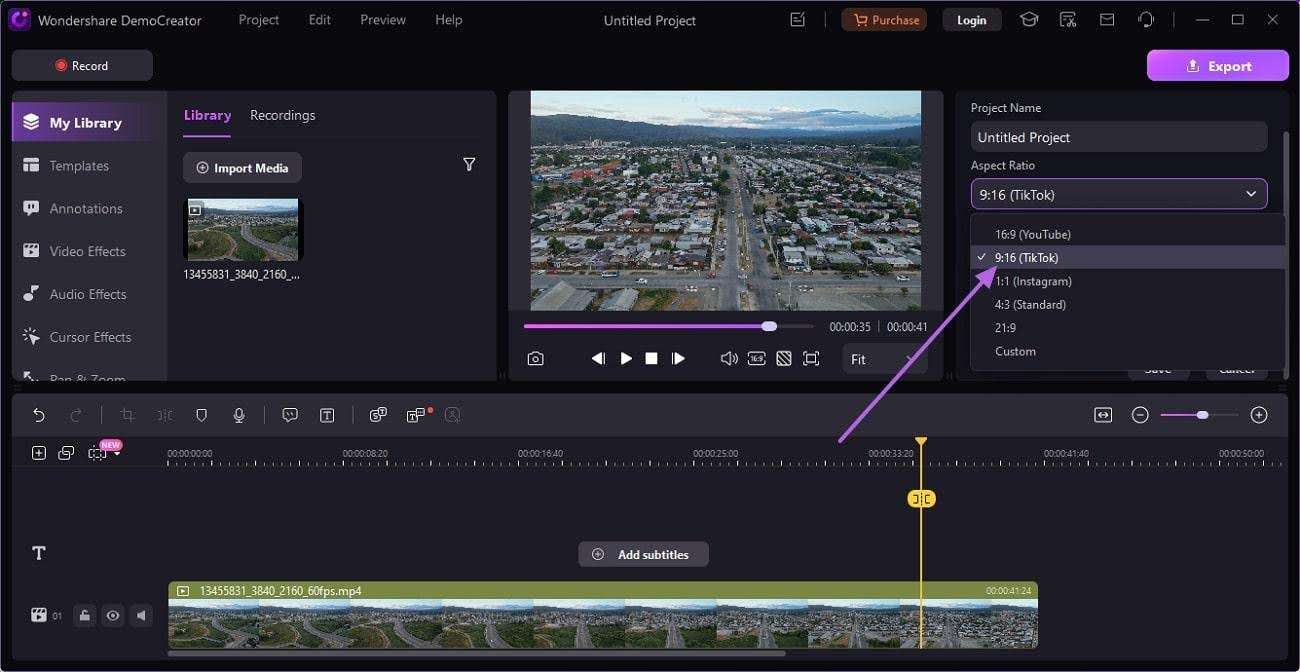
Step 2Set the Aspect Ratio
From the drop-down menu of the aspect ratio, select the "9:16" ratio of TikTok to transform the orientation of your video.
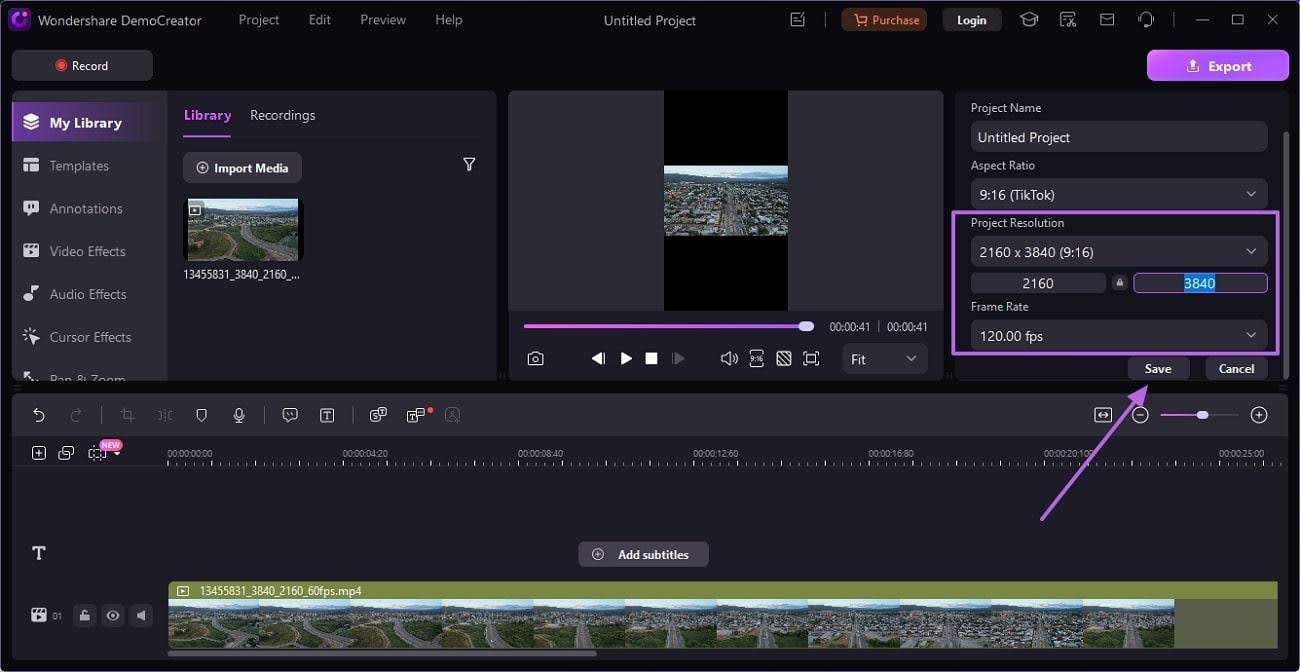
Step 3Alter Frame Rate and Resolution and Save Settings
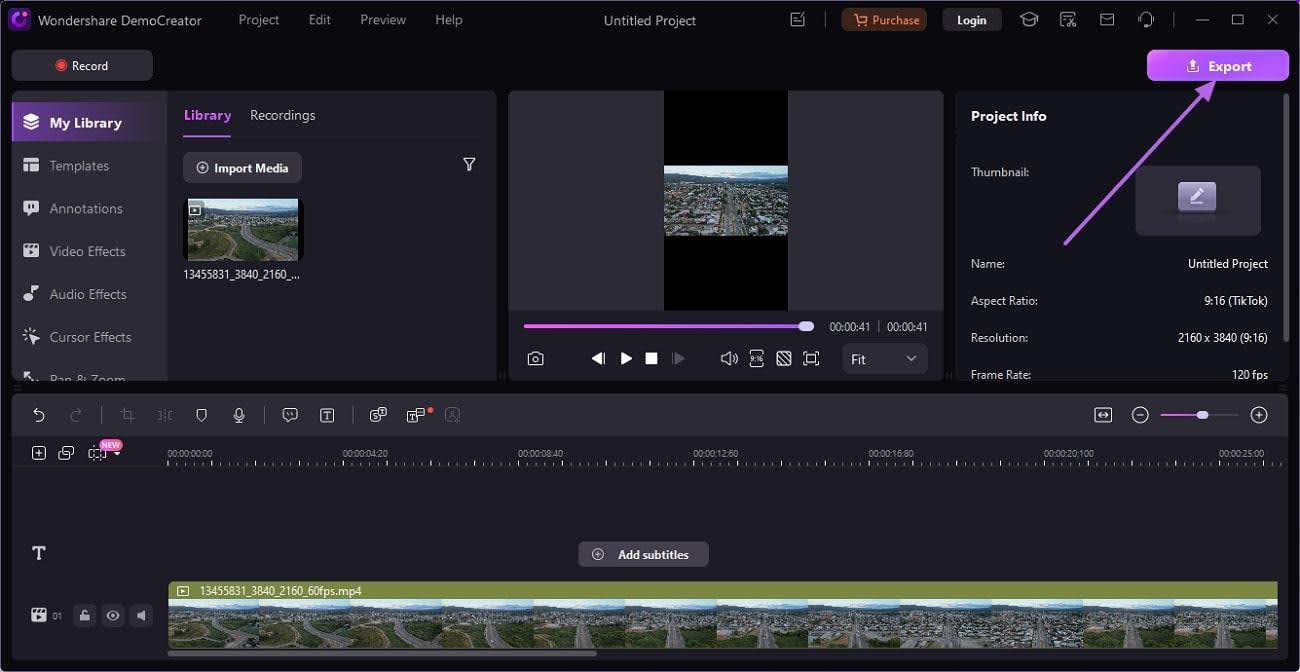
Besides the aspect ratio, you can also adjust the height parameter of the video's resolution and its frame rate to 3840px and 120 fps, respectively. When you are done editing the video, hit the “Save” button given below to lock in all the settings.
Step 4Export the New Vertical video
When you are done with all editing, click the “Export” button in the top-right corner to save the file to your computer.
Part 4. [Alternatives] How To Make a Horizontal Video Vertical With Quick Operations?
Even though DemoCreator stands out as the best tool in all regards, there are other online and offline options you can try. A few of these tools are discussed in this section, along with their complete details.
Are you wondering how to make a horizontal video vertical because you do not have Wondershare DemoCreator? This part of the guide has other offline options for you, like Adobe Premiere Pro and iMovie.
1. iMovie
This Mac-based solution offers a range of intuitive features to convert your landscape video into a portrait format. It lets you rotate your videos at a 90-degree angle, and if this option does not suit your needs, you can also crop them. With the crop and trim feature, you can split the videos into smaller sections. To cater to the query of how to make a horizontal video vertical, read the following steps:
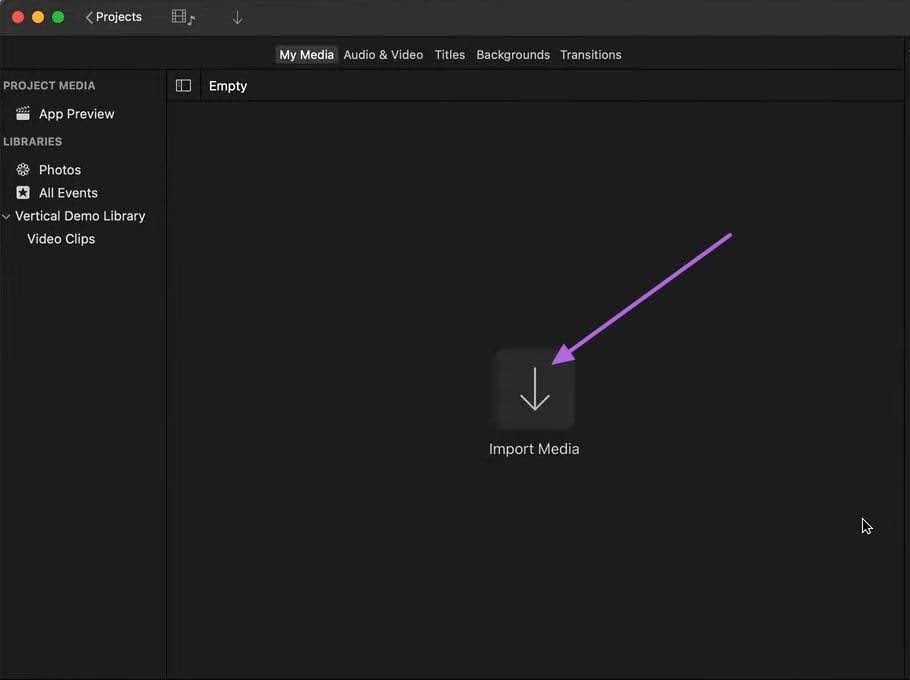
Step 1
Import the first vertical video into iMovie by selecting the “Import Media” button.
Step 2
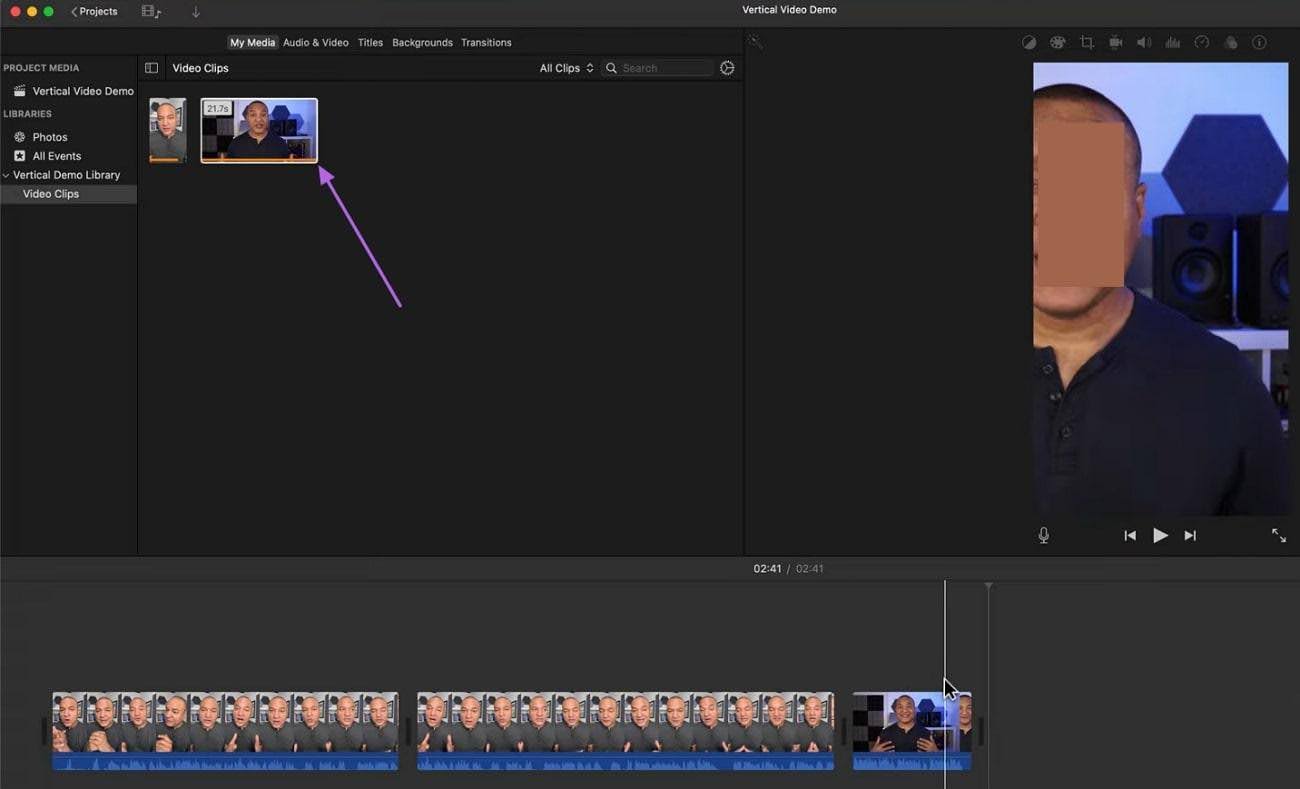
Drag and drop the horizontal video beside the vertical one to upload it.
Step 3
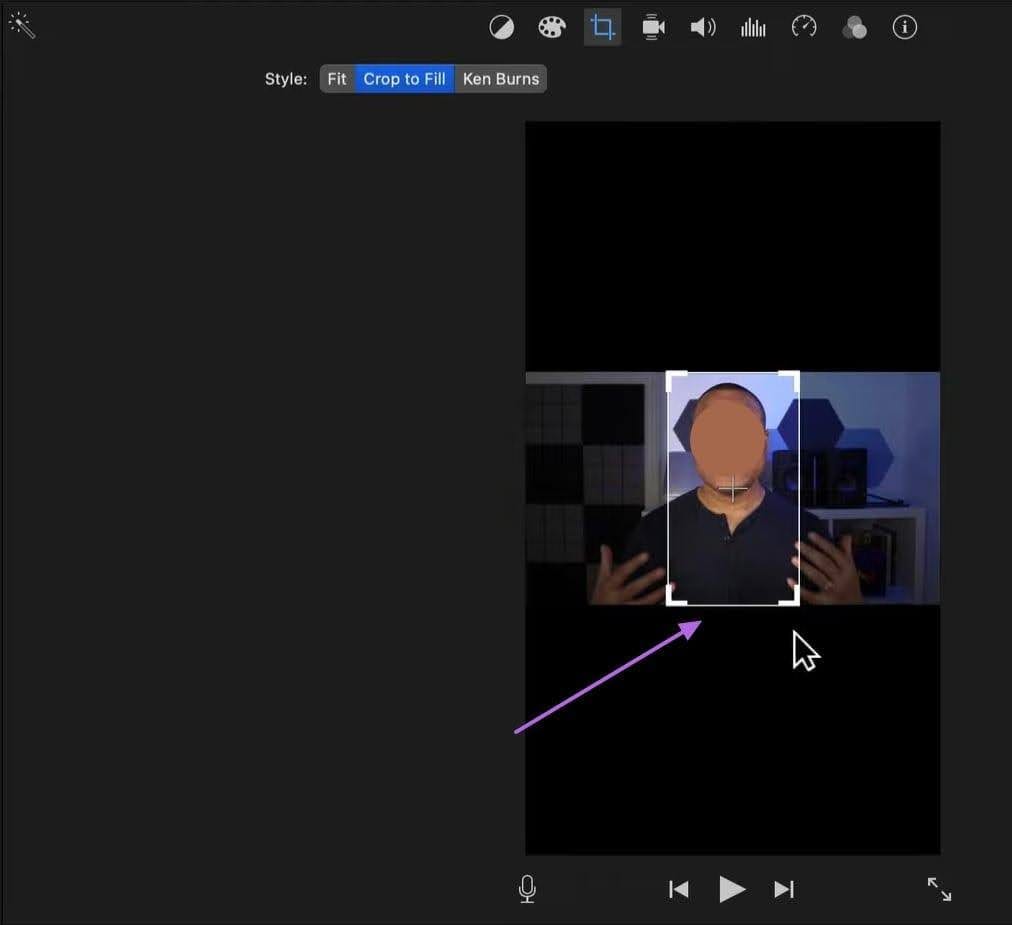
Tap the main video shown on the right side of the screen and set the frame manually by dragging on the video.
Step 4
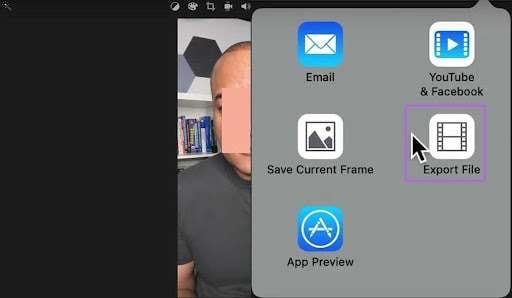
Once you set the frame and your landscape video has been converted into a portrait one, press the "Export File” button to save it.
Limitations
- A vertical video must be included, otherwise it does not directly convert the video orientation.
- iMovie is only compatible with Apple devices, leaving behind other users.
2. Adobe Premiere Pro
Adobe Premiere Pro is one of the most popular editing software because of its professional level and advanced manual editing features. You can convert multiple horizontal videos into vertical format simultaneously. It also offers an AI Transcribe feature that can automatically translate your video and add subtitles in up to 27 languages. However, if you are seeking an answer to how to make a horizontal video vertical, follow the instructions below:
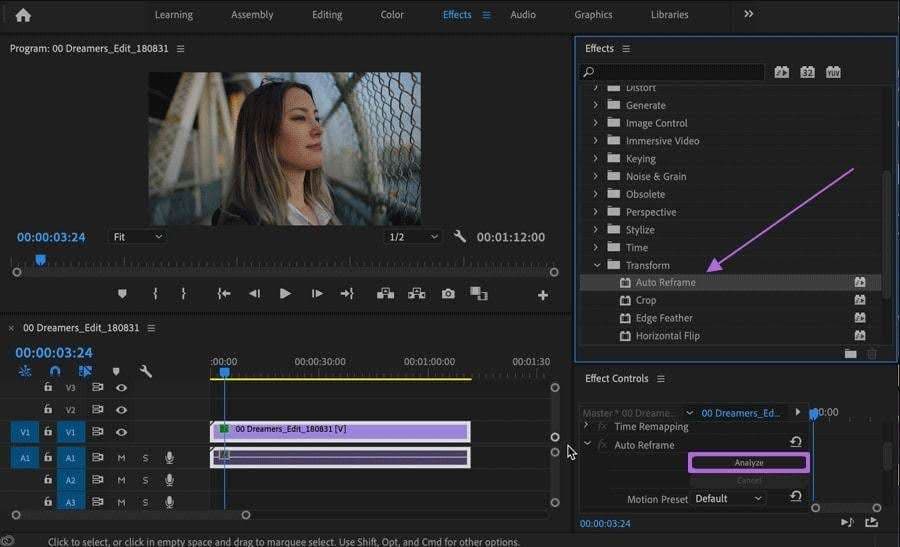
Instructions. Import the video you want to edit and press the “Transform" menu from the “Effects” section. From its drop-down menu, choose Auto-Frame and hit "Analyze" at the end.
Limitations
- The tool has a very crowded interface, making it very difficult to use as a beginner.
- Only the high-end GPUs can support this software; otherwise, the rendering keeps crashing.
B. Online Alternatives
You must be thinking about how to make a horizontal video vertical before posting the content on certain social media platforms. While you can always go for offline tools, opt for online tools if you seek quick operations.
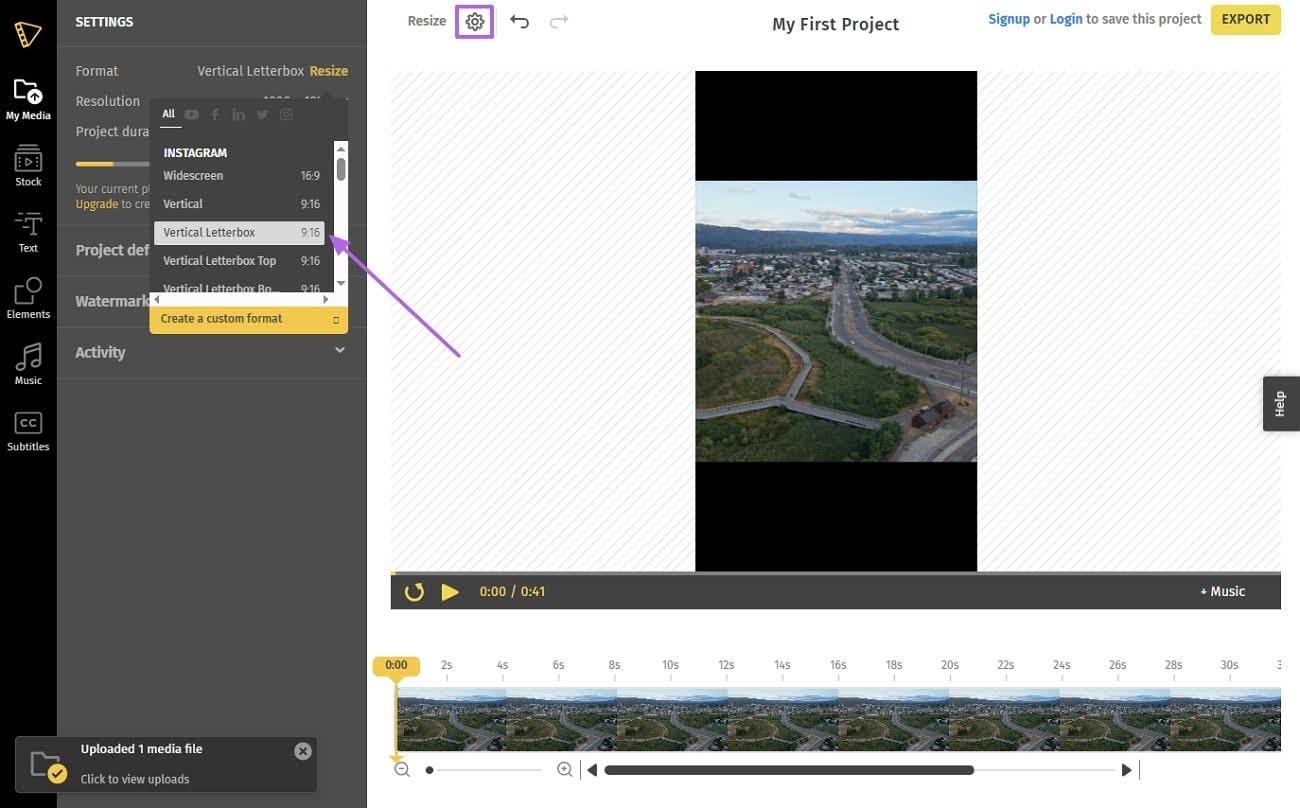
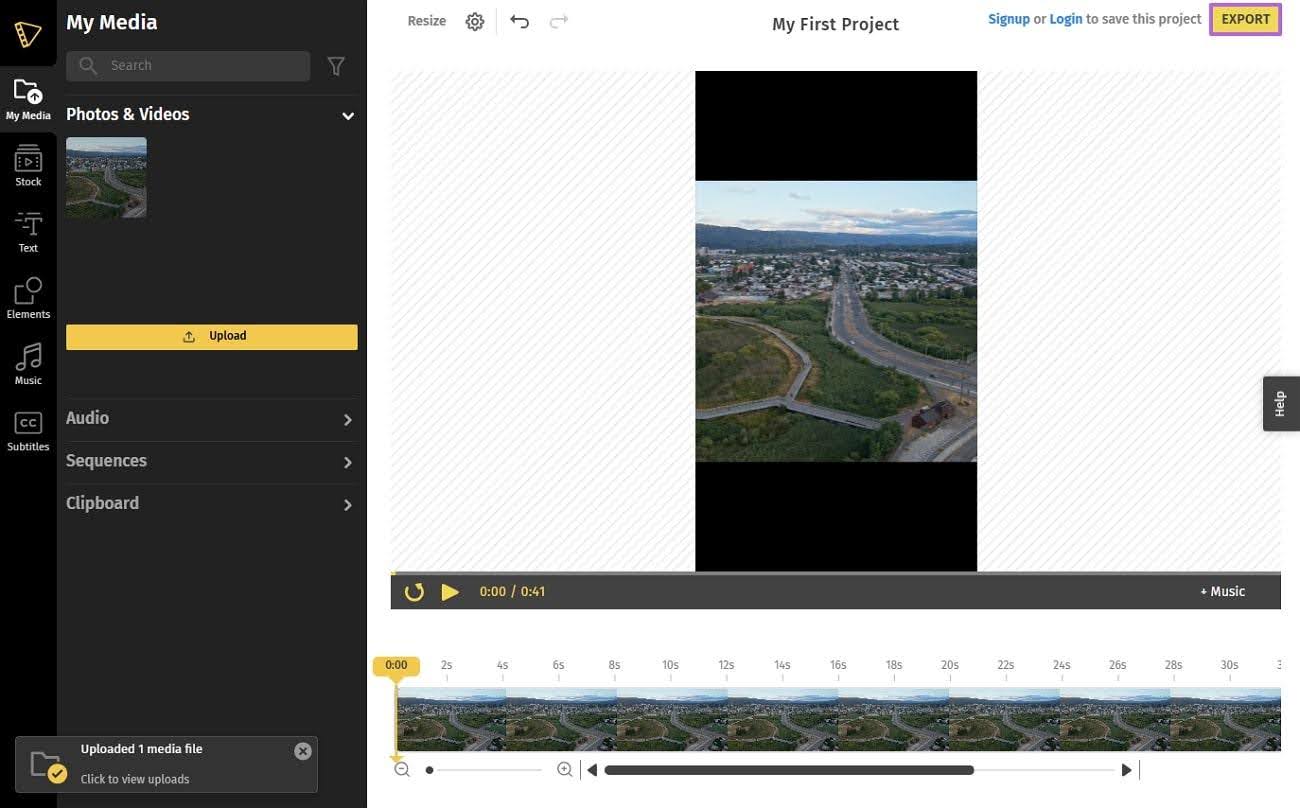
Typito is a free online tool with AI editing features to help you repurpose videos. It provides you with the aspect ratios of various social media platforms, including YouTube, Facebook, Instagram, and others. Within these ratios, the tool provides different orientations, such as Vertical Letterbox Top and Vertical Letterbox Bottom, among others. To repurpose your video for TikTok using Typito, follow the steps given below:
Step 1
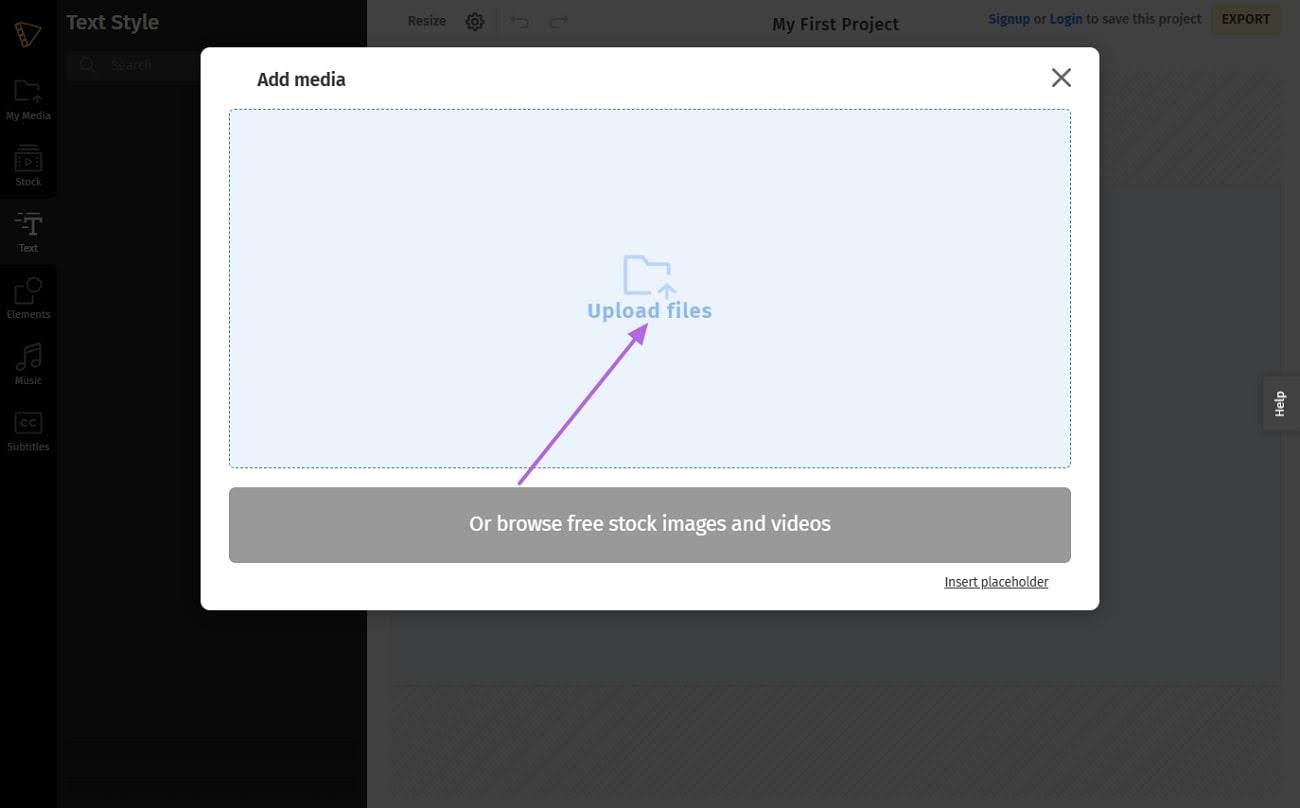
To upload the video you want to change the aspect ratio of, click the “Upload Files” button.
Step 2
From the top of the page, tap the “Settings” icon and choose an aspect ratio “Vertical LetterBox 9:16” from the resize drop-down menu.
Step 3
At the end, press the “Export” button on the right to download the video for further use.
Limitations
- The free version of this online tool leaves a watermark on the exported videos.
- Many users have found glitches when working on files of large files.
2. CapCut
This solution offers 6 kinds of aspect ratios, including 1:1, 9:16, and 2:1. On the other hand, it allows you to manually crop the video to change the size and ratio. Besides, its Auto Reframe feature enables you to focus on the main object in the video. The following are the steps to follow if you want to know how to make a horizontal video vertical:
Step 1
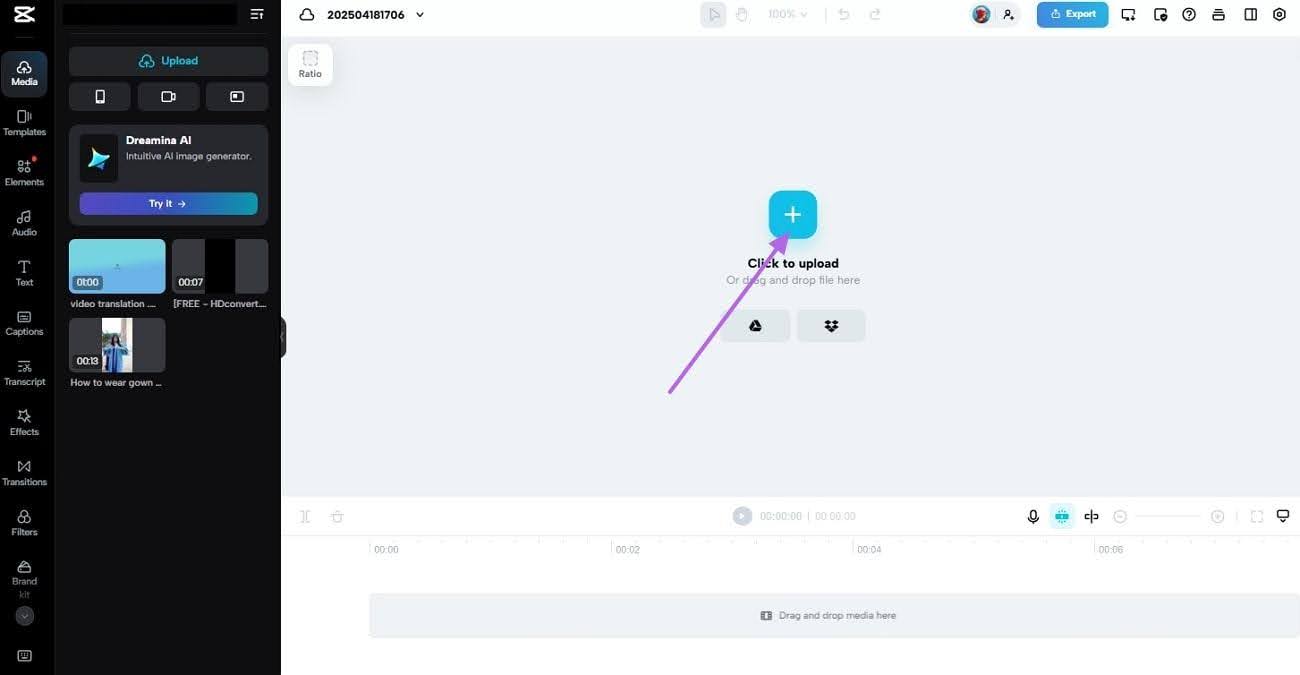
To transform the targeted video, upload it on CapCut by clicking the “+” sign in the middle of the screen.
Step 2
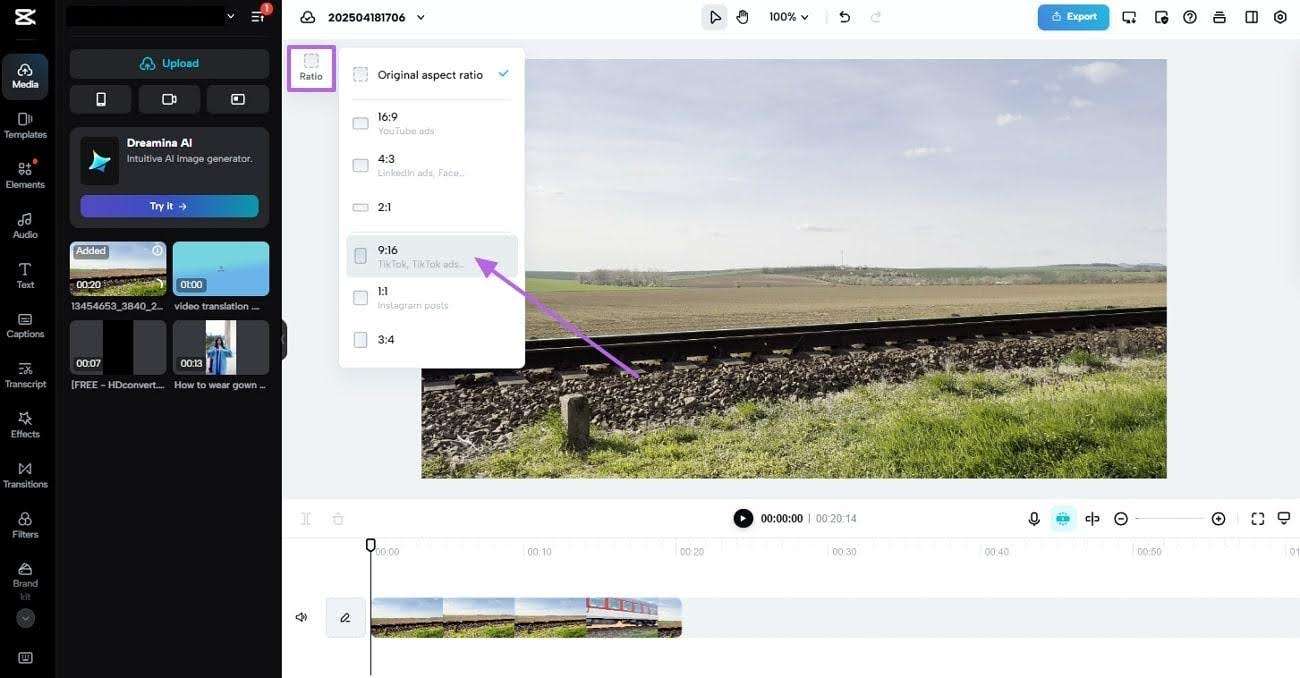
Expand the “Ratio” settings on the top-left side and select the desired aspect ratio, such as “9:16”.
Step 3
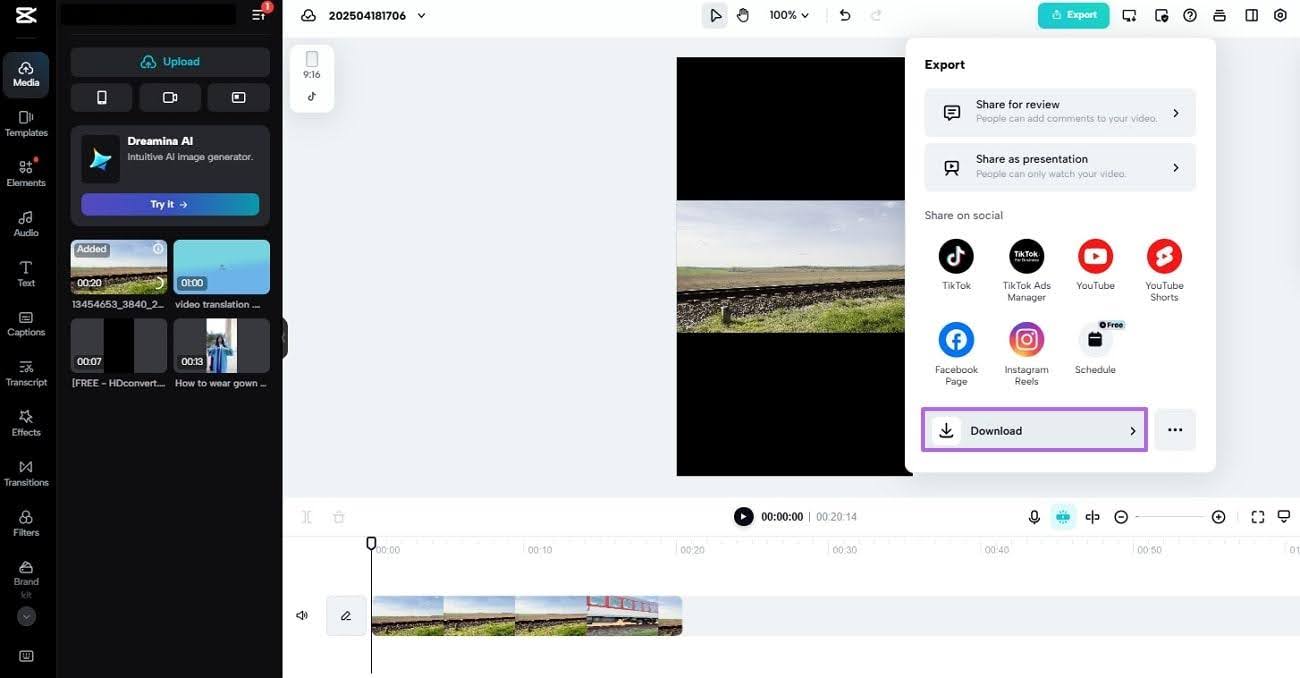
When the orientation of the video is changed from horizontal to vertical, hit the “Download” button in the “Export” menu to continue downloading.
Limitations
- The frame rate settings are limited to 60 frames per second (fps) only.
- Videos longer than 10 minutes are not supported by CapCut.
3. Kapwing
Kapwing offers a variety of sizes, as recommended by social media platforms, whether you're designing for a post or a reel on Instagram. The Zoom and Fit feature sets the video in the frame, while you can select a position and resolution manually. Additionally, as far as the size of the video is concerned, you can trim and crop it as much as you like, so follow the given steps:
Step 1
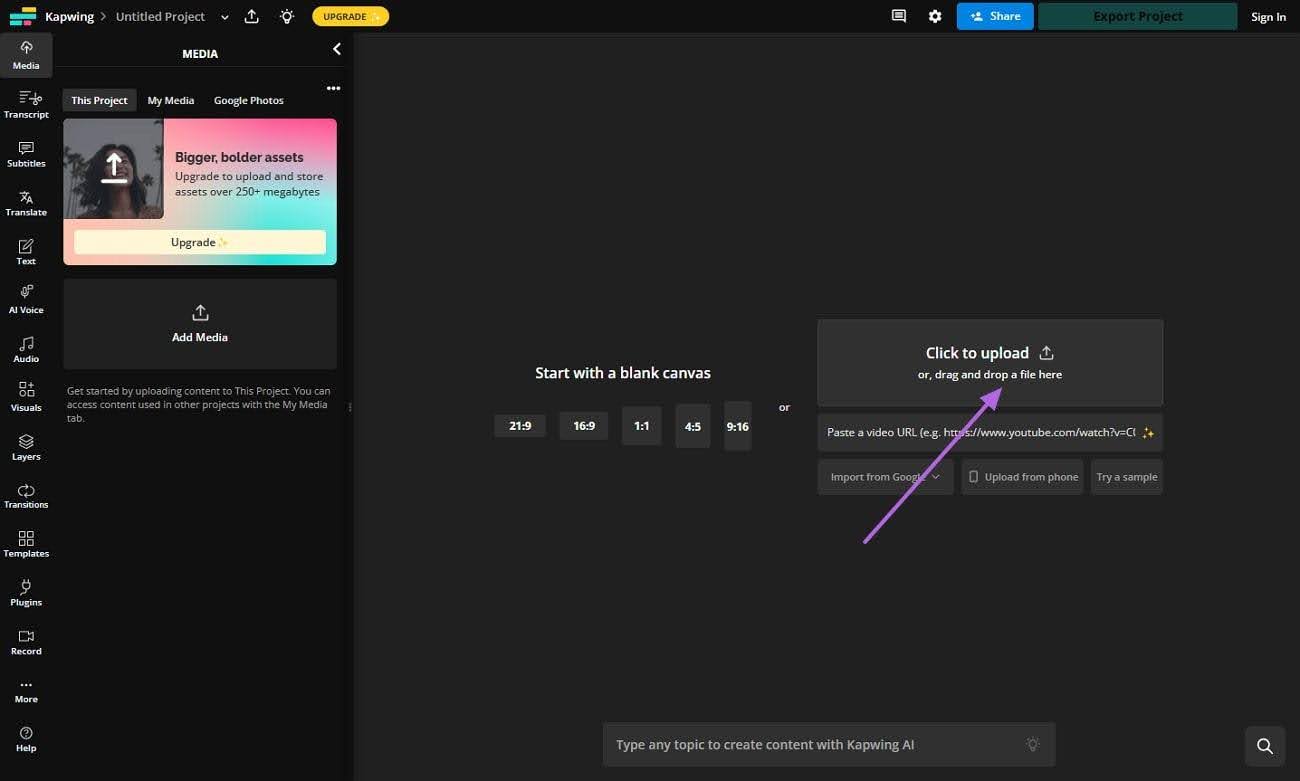
To open the video in this tool, hit the "Click to Upload" button present in the middle of the screen.
Step 2
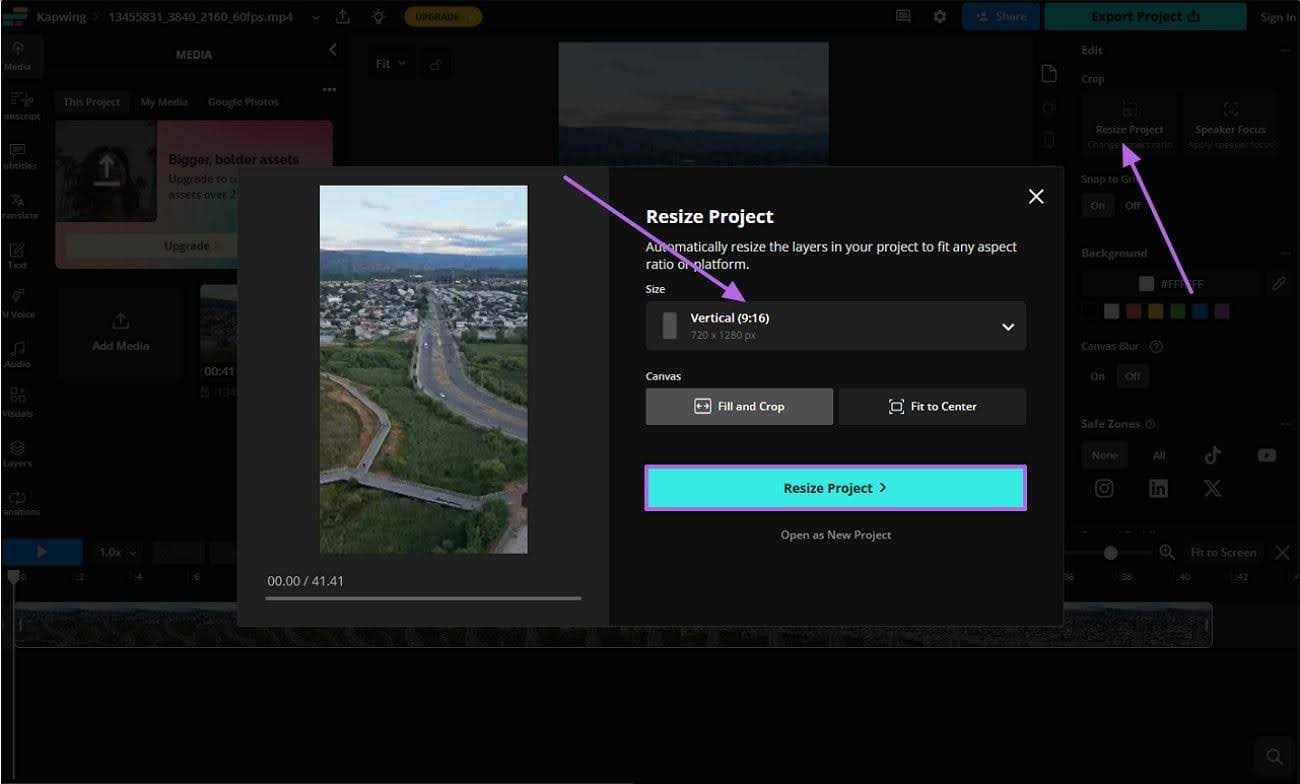
From the “Edit” menu, choose the “Resize Project” option. Opt for the "Vertical (9:16)" size to make your video vertical, and click the "Resize Project" button to convert it.
Step 3
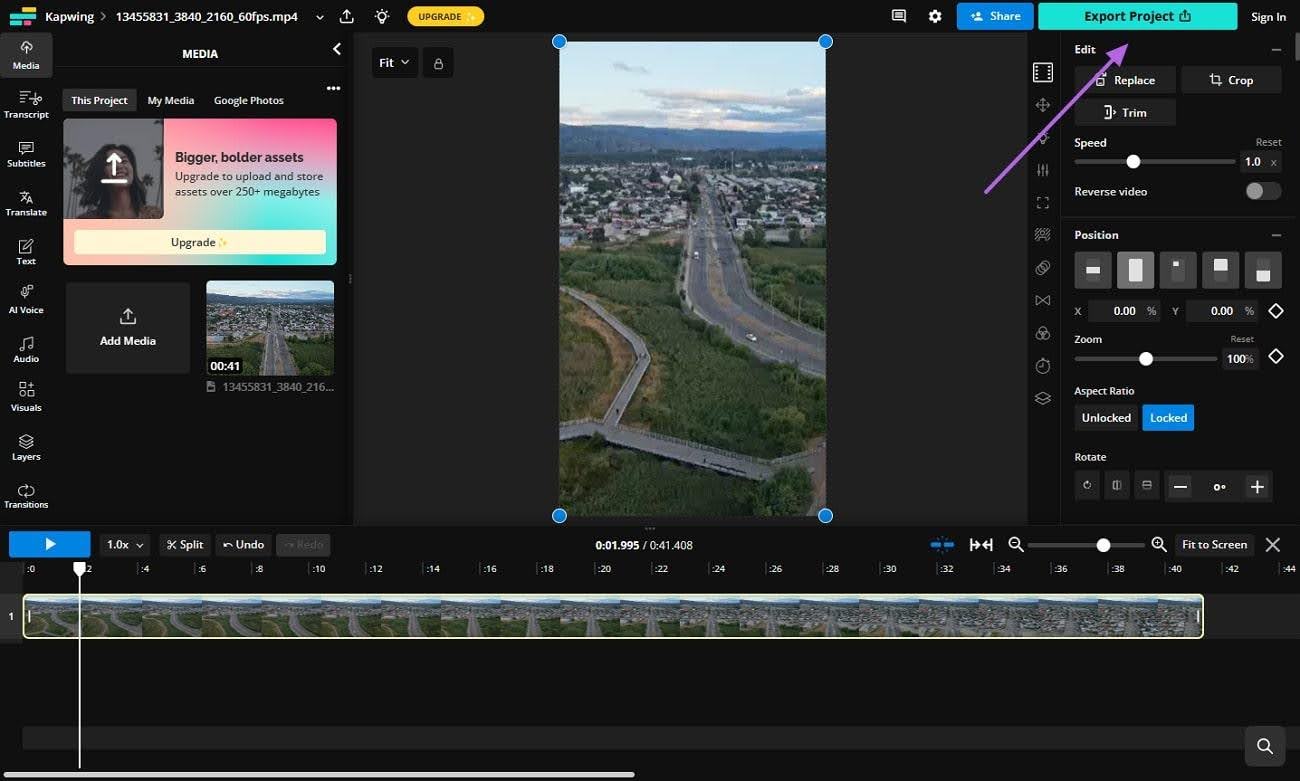
After you have finished changing the video’s layout and other necessary editing, tap the “Export Project” button in the top-right corner.
Limitations
- The export quality of videos in Kapwing is only 720p in its free version.
- Its free version lets you upload a file up to 250MB only.
Part 5. How To Master Converting Horizontal Video to Vertical: Some Important Tips
Converting a horizontal video to a vertical isn't just about cropping the sides; it is a skill important for making engaging content. Here are a few suggestions to keep in mind, now that you have all the knowledge on how to make a vertical video horizontal and vice versa:
- Reframe Instead of Cropping: Cropping a video can result in the loss of useful content when converting it to portrait format. Always reframe the video so that the whole content is shared across all platforms.
- Consider the Use: When shooting videos, keep the camera orientation in line with the intended use. For instance, when creating a YouTube video, keep it horizontal; otherwise, for Shorts or Reels, you need to hold it vertically.
- Adjust Text and Graphics Placement: Text and logos placed in a horizontal format may appear awkward or be cut off when displayed in a vertical format. Always reposition these elements to fit within a 9:16 layout, especially when posting to apps like Instagram or TikTok.
- Preview for Platform Requirements: Always preview how your video will appear before posting; what looks good in your editor might get trimmed or covered in the final post. This is because each platform handles vertical content slightly differently.
- Keep the Original Version: You should always keep a copy of your original horizontal video. In the future, you might have to repurpose it again for another platform or campaign, and starting from scratch can be a hassle.
Part 6. Frequently Asked Questions
FAQ
-
1. Can I convert a horizontal video to a vertical one without losing quality?
Yes, you can easily convert a video from a vertical to a horizontal layout using many online and offline tools available. Although only a few tools, such as DemoCreator, transform your videos while maintaining quality at the same time. -
2. Will my video be automatically cropped on social media platforms?
When posting a horizontal video on a platform that accepts vertical videos, such as TikTok or Instagram Reels, the content will automatically be cropped. This is why it is truly suggested that the videos be edited into the desired orientation beforehand. -
3. Why does my vertical video have black bars after uploading?
Black bars usually appear when the video’s aspect ratio doesn't match the platform. To avoid this, export your video in the recommended aspect ratio for vertical videos, typically 9:16. Otherwise, make sure what the requirement of a particular platform is. -
4. Is vertical video really better for engagement?
As they fill the screen, vertical videos tend to perform better on mobile-first platforms like TikTok and Instagram Reels, which provide viewers with a more immersive experience. Consequently, a reel has a higher chance of going viral than a feed video. -
5. Is it better to record vertically from the start?
If you know the content is intended for vertical platforms, filming vertically from the start saves time and ensures everything is framed correctly. However, reframing is helpful if you’ve already filmed horizontally.
Conclusion
To summarize, it is crucial to learn how to make a horizontal video vertical or vice versa to keep content relevant and engaging. You should understand your platform and apply edits accordingly, no matter if you're editing with Wondershare DemoCreator or trying out online or offline tools. If you're ready to give your content the vertical edge, start reframing with the best tool, Wondershare DemoCreator, today.