
Sometimes you want to check a tweet, explore a profile, or read through a trending topic. However, doing so requires the hassle of creating an account. Most users want to be able to watch the tweets of their favorite actor or sportsperson. As you officially cannot view Twitter without an account, you need a few workarounds. This extensive review will explore all possible ways to do so without a hassle.
In this article
Is it Possible to View Twitter/X Without an Account?
At first glance, it might seem like you need an account to open a tweet or visit a profile. Especially with recent changes to the platform, many users assume it's no longer possible to browse freely. So, is there still a way around it? The answer is yes, but it comes with quite a bit of limits.
There was a time when public Twitter profiles and tweets were freely viewable without logging in. However, tighter restrictions were implemented in mid-2023 after Elon Musk took over. One major change was blocking all non-logged-in users from accessing tweets or profiles directly through normal links. When you tried to see Twitter without account, you’d often get redirected to the login screen almost immediately.
This move aimed to push more users into creating accounts, partly to control traffic and protect data. As a result, many simple browsing methods stopped working the usual way. However, despite these restrictions, some workarounds still exist.

How to See Twitter Without an Account: Using the Search Engine
When it comes to possible ways, let’s look at one of the easiest methods. It involves using search engines to access the specific content you are looking for. This approach is the most straightforward option you have, as all you need to do is perform a search. However, you will need to use specific content for this, like a link, keywords, or a timestamp. To view tweets without an account:
Instructions. Open your preferred search engine, like Google on a web browser, and use the “site:x.com [username or keyword]” to perform the search. Once the results appear, browse them to find the specific tweet you were looking for. You can even tap the three dots near the targeted link to learn more about the page where the possibility of extra content exists.
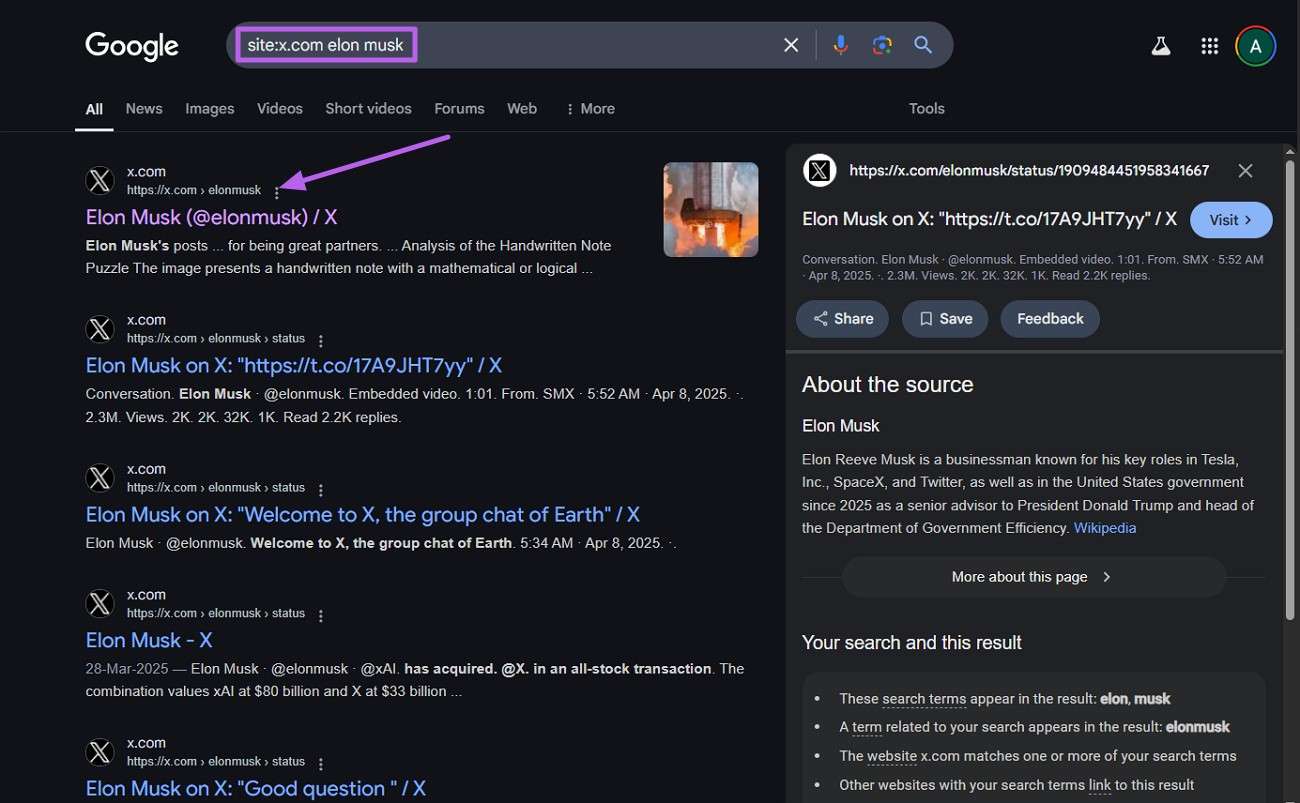
While it is a quick approach, it is really limited in what it can show. Most of the tweets you will be looking for will not appear fully in the search results. With Google doing away with cached pages, this method has become a lot less successful. Not to mention the prerequisites of being really specific about what you are looking for.
 Pro-tip
If you want to get How to watch tiktok without app, you can click here to get a detailed guide.
How to View Tweets Without Account: Adopting a Twitter Social Media Aggregator
Where search engines fail, there’s another way to explore tweets without signing in. One method that still works well involves using social media aggregators. These are online platforms that collect and display content from different sites without requiring you to log in or even visit the original site. One such option is Nitter, which can let you perform a Twitter search without an account using these steps:
Step 1. Utilize a web browser to access the nitter.net site and use its search to look for the targeted account. You can search for the keywords or hashtags to try and locate what you are looking for.
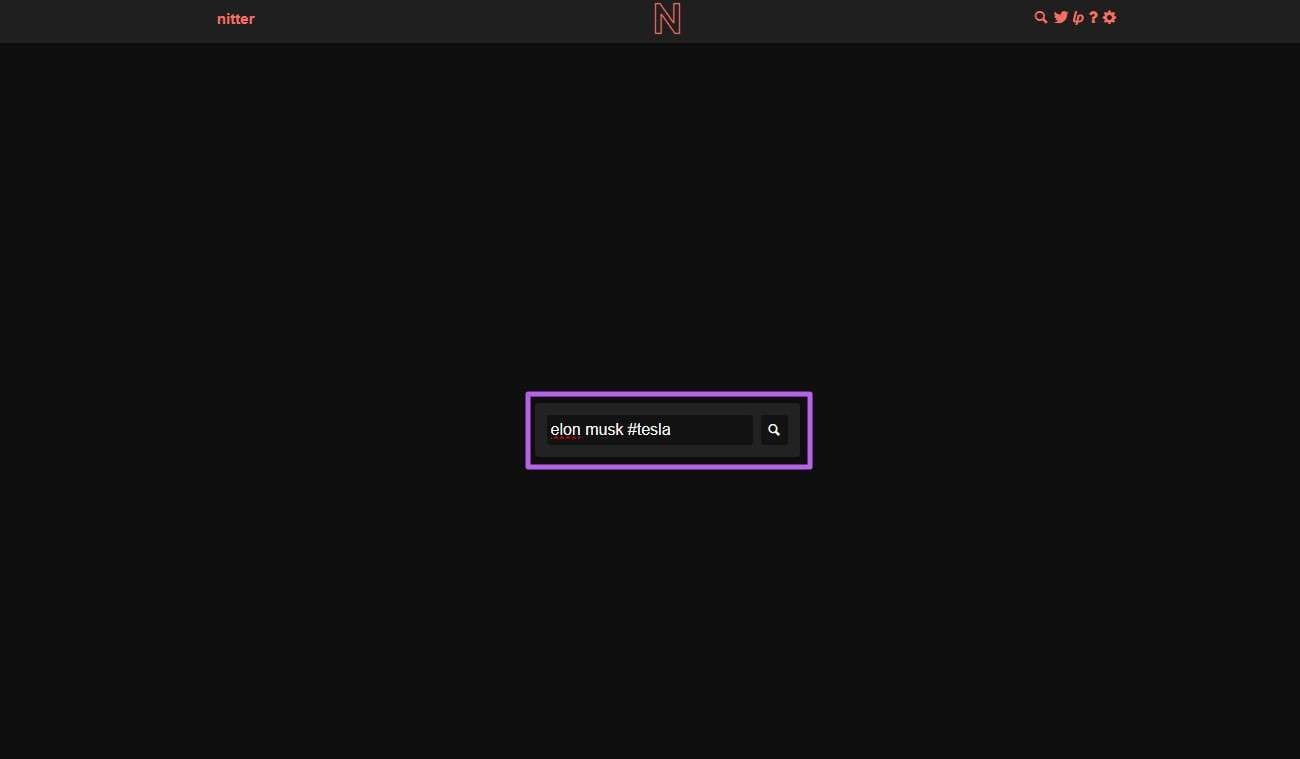
Step 2. Once the results are shown, you can tap on any account handle or hashtag to view more content. When you explore accounts, it is similar to how you search on Twitter/X with limited accessibility.
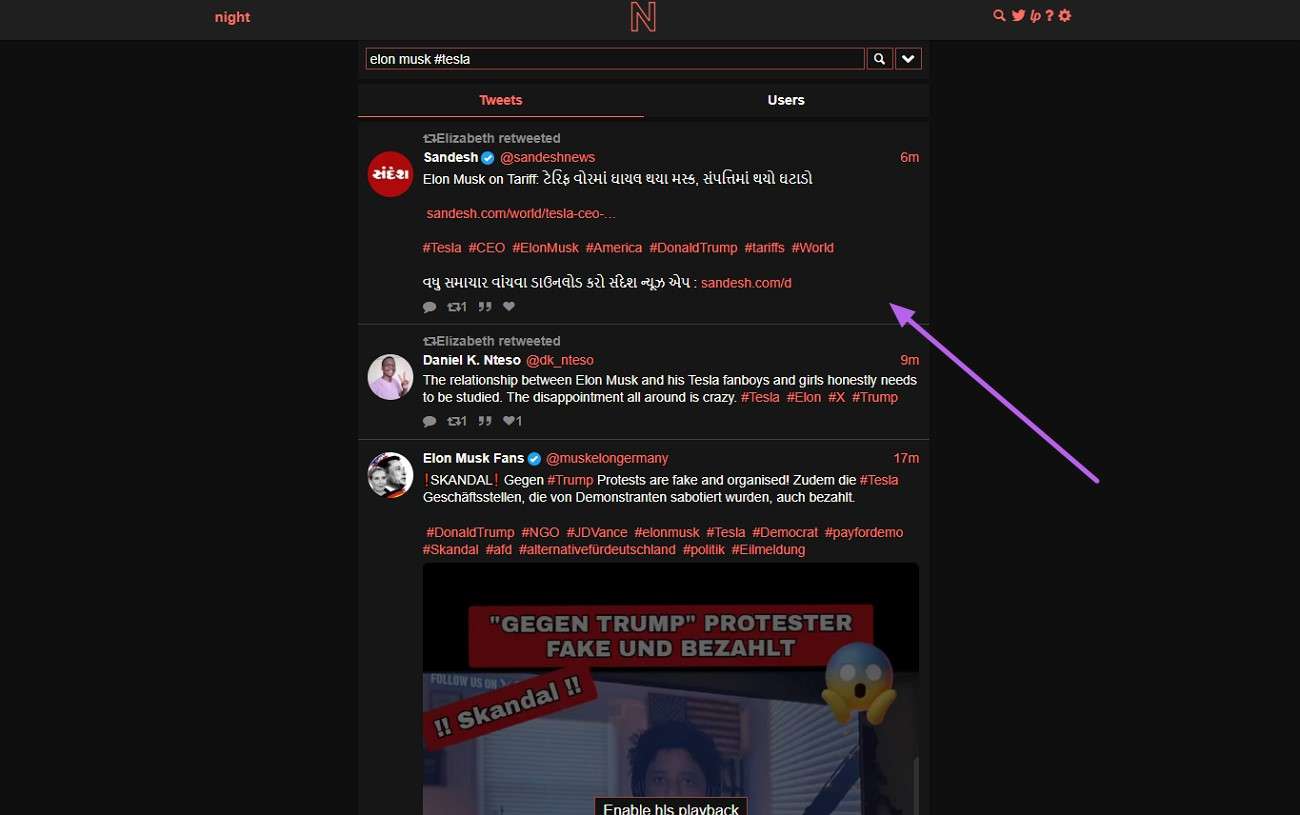
Even though this method works well for browsing, you won’t be able to click through to private accounts. Similarly, tweets protected by privacy settings remain out of reach. Plus, media content like videos may not always display properly.
How to View Twitter Without an Account: Using an Embedded Twitter Link
These are tweet previews placed on blogs, news articles, or websites. You’ve probably seen them before: they show a tweet inside a webpage complete with everything. When someone adds a tweet to their website using the embed feature, they create a window that shows real Twitter content. Since this is shown through the website, you can view it without logging in. Here’s how to use this Twitter viewer without an account:
Step 1. Look for articles or blog posts that include tweets. These are often found in tech, sports, or entertainment news.
Step 2. Following that, view the embedded tweet on the page, as there’s no need to click through to Twitter unless you want to. Moreover, you can use Google to find embedded tweets by searching for things like “Taylor Swift tweet site:bbc.com.”
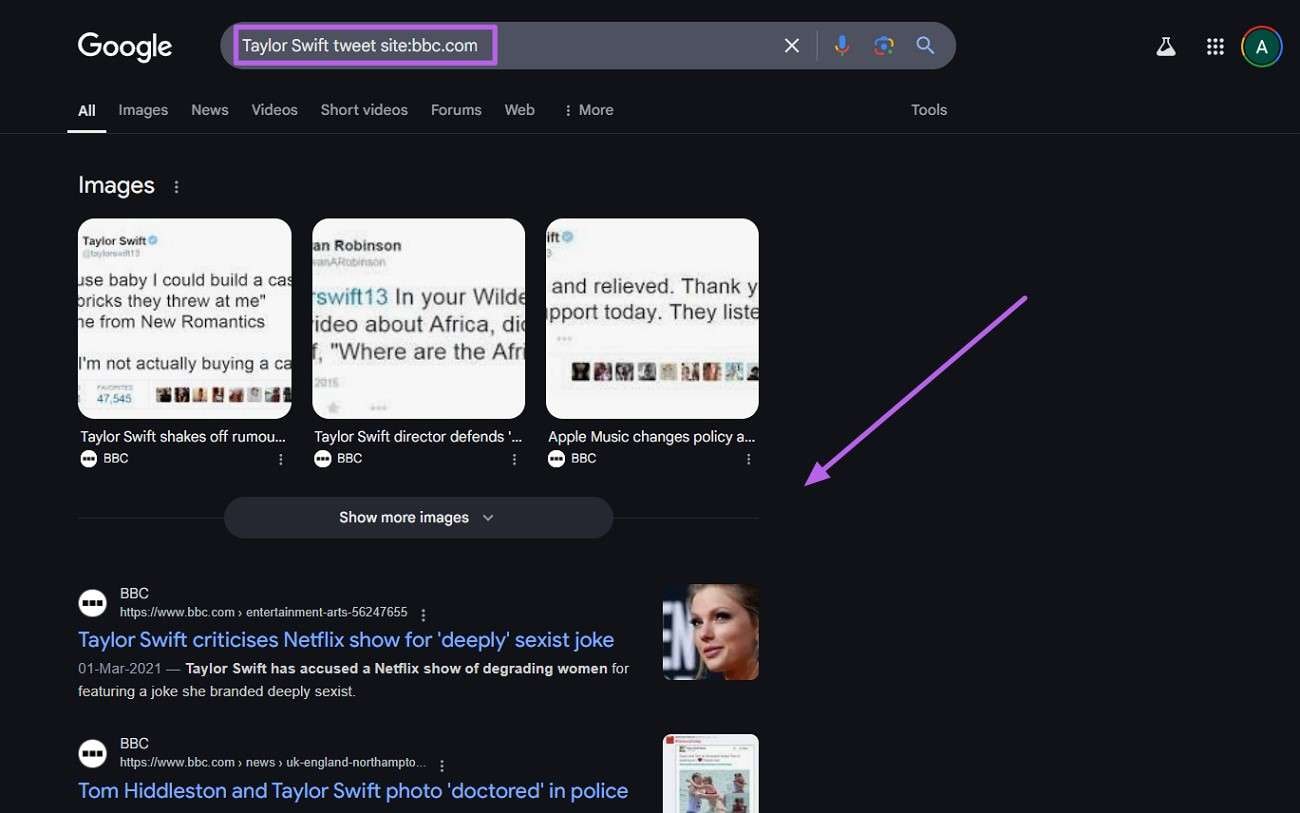
While this is a handy way to view content, you can only see tweets that others have embedded. Plus, the embed will no longer display it if the original tweet was deleted or made private not to mention the fact that you can’t explore an entire profile this way.
Want to Download Twitter Content? Try Online Solution!
Sometimes, it’s not just about viewing a tweet, as you might want to save a video from X to your device. Luckily, you can still do this using a simple online tool, even without an account. These let you download videos from public tweets as long as you have the right embedded link. Once you have that, the rest is easy via these steps for browsing Twitter without an account:
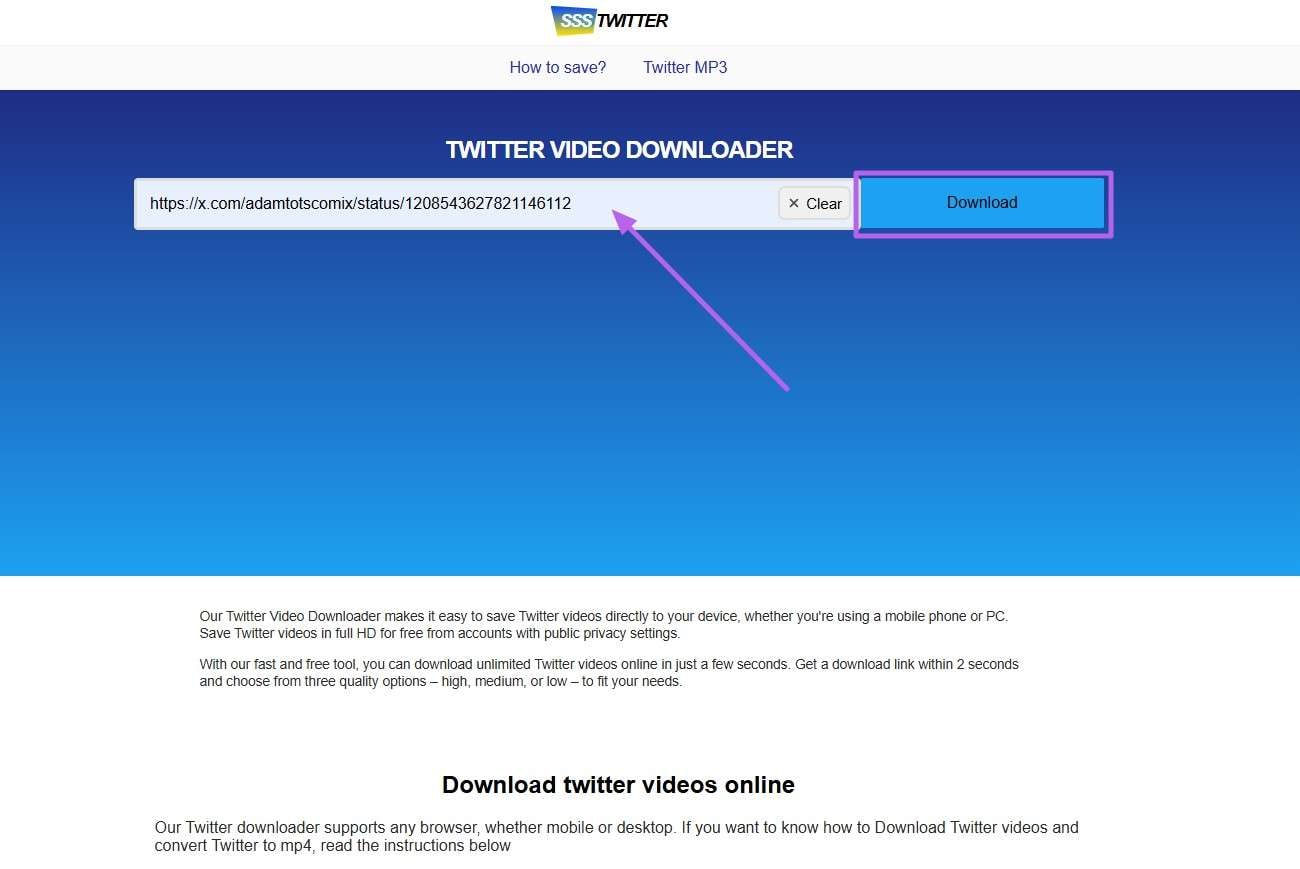
Step 1. Once you have the targeted link, access the ssstwitter.com site on your web browser. Here, paste the URL in the given field and hit the “Download” button.
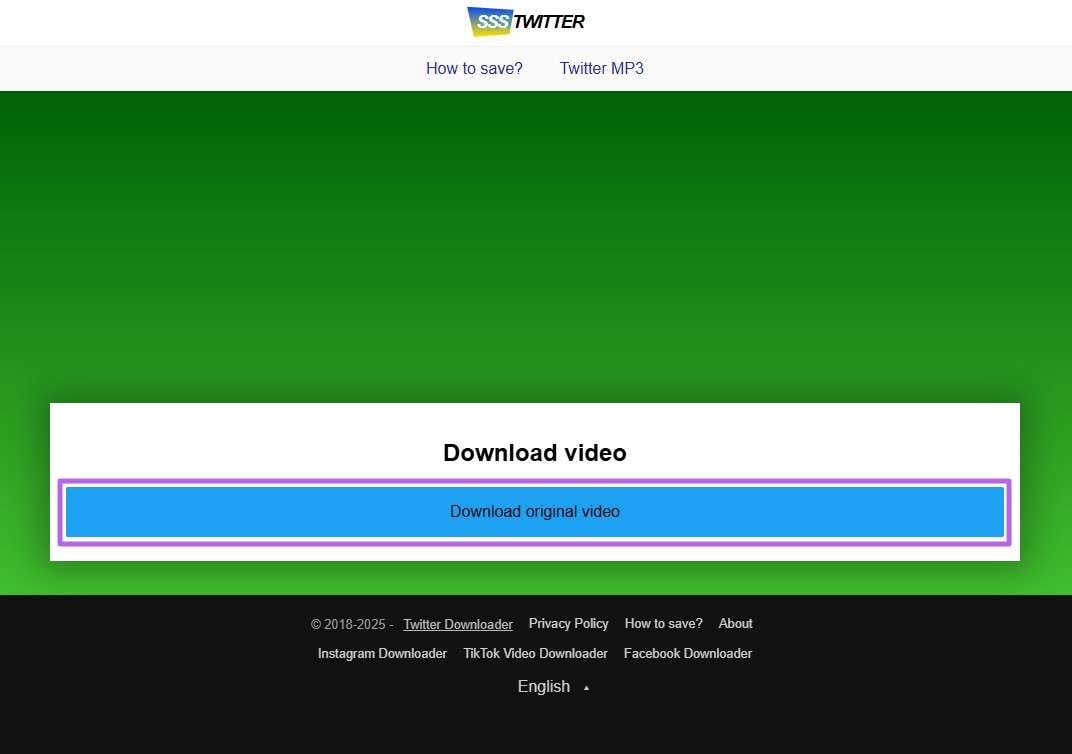
Step 2. When the link is processed by the tool, hit the “Download Original Video” button to save the tweet to your device.
Although it is a useful approach, it only works with public tweets. You also need a valid and accessible tweet link, especially from an embedded version. Some tools can also show ads or redirect pages, so use only trusted sites.
Want to Post Something on Twitter? Edit It Before Getting it Posted!
Even if you’re not logged into Twitter, that doesn’t mean you can’t create content for it. Maybe you want to create a video post or prepare something for someone else to publish on your behalf. In such cases, preparing your content in advance via a robust editing tool can make a huge difference. One such great option that helps you do exactly that is Wondershare DemoCreator.
This program makes it easy for anyone to create and edit short videos, screen recordings, or voice-over content. Even if you’ve never edited a video before, its simple design to voice effects make the process feel quick and fun. Moreover, you can adjust timing, add animations, and even highlight key points with text. This way, you stay in control of your content if you view Twitter without logging in.
Key Features
- Native Effects and Transitions: DemoCreator includes a variety of ready-to-use effects and smooth transitions. They make your videos more dynamic and professional without spending hours editing.
- Annotations and Captions: You can easily add text boxes, arrows, and highlights to explain what’s happening in your video. It is especially helpful if you're creating tutorials, reviews, or step-by-step guides.
- Audio Editing and Voice Effects: It adjusts volume, removes background noise, and even applies fun voice effects. These tools make your video sound clear and engaging, even if it was recorded in a noisy space.
- Chroma Key Support: With the green screen tool, you can replace your background with any image or video you like. This feature is great for creating cleaner, distraction-free videos or fun social posts.
Detailed Guide to Editing the Content You Want to Post on Twitter via DemoCreator
Its dynamic design lets you make the modifications a breeze via the drag-and-drop timeline feature. Follow these detailed instructions to learn how you can edit a clip within no time:
Step 1. Launch the Video Editor to Begin the Procedure
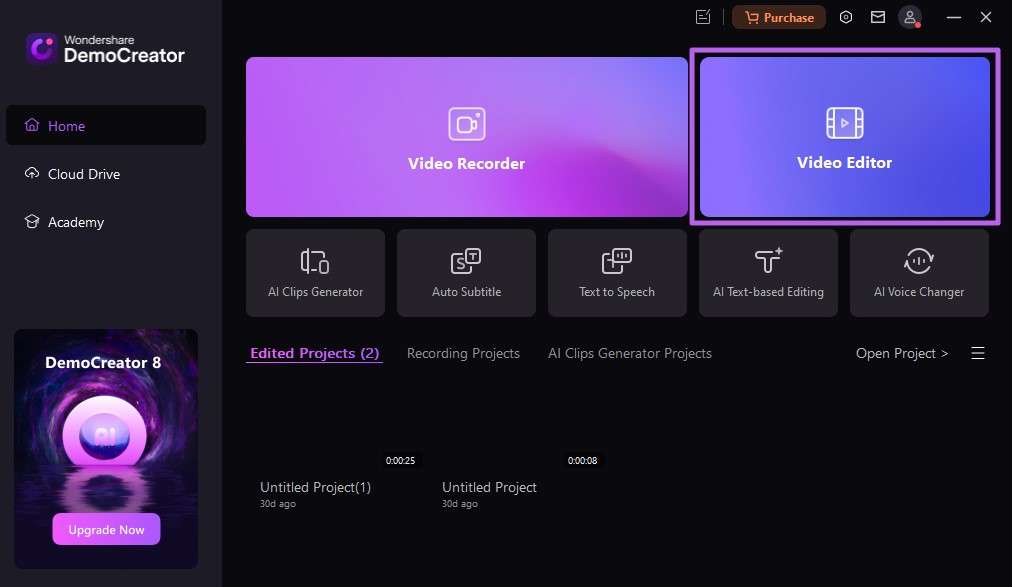
To get started, launch DemoCreator on your PC and head over to the main screen. Then, choose “Video Editor” to move forward and tap the “+” icon to bring in the video you want to edit.
Step 2. Add a Mirror Effect to Bring Change
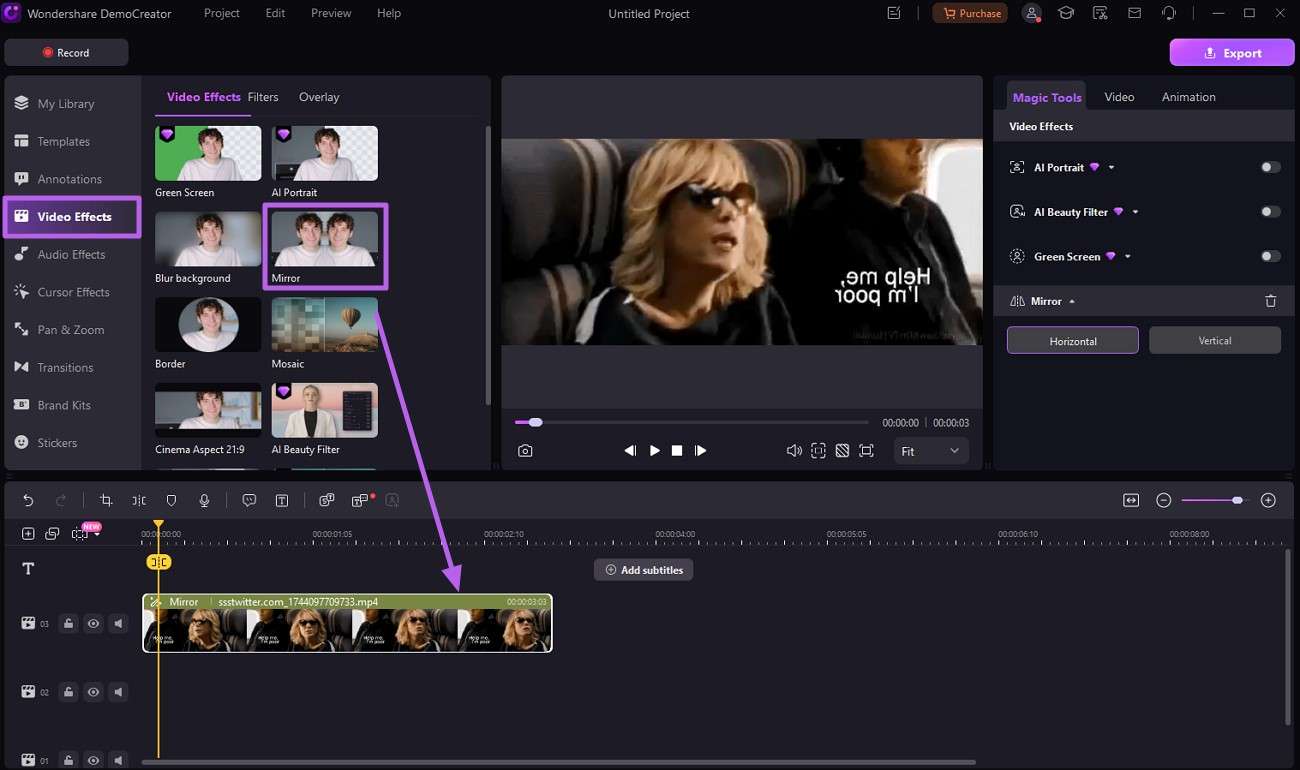
Next, drag the video to the timeline and go to the “Video Effects” section on the left. Here, opt for the effect you prefer, like “Mirror,” and drag and drop it to the timeline near your clip.
Step 3. Insert a Stylish Filter to Increase the Look
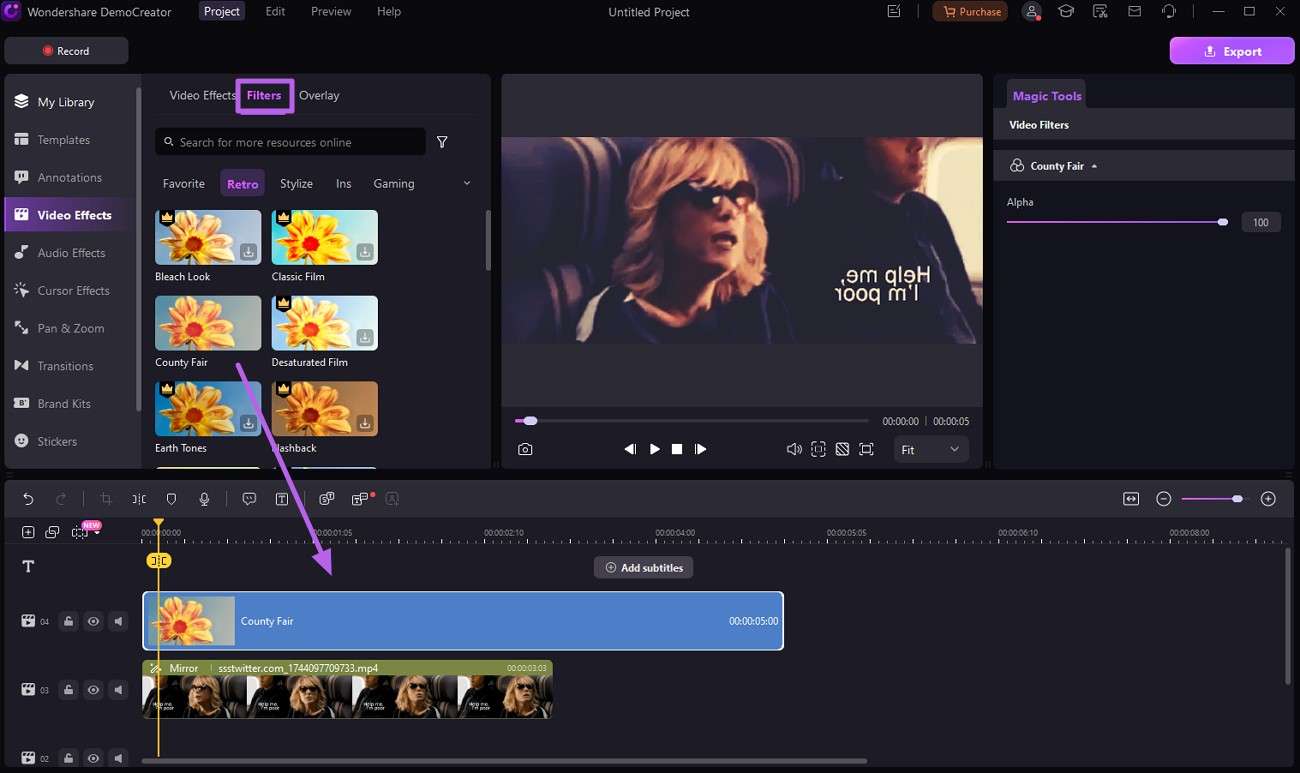
After applying effects, continue by switching to the “Filters” category inside the same section. Now, opt for the desired type and select one that fits your style. From there, drag it onto your timeline and place it precisely where you'd like it to appear.
Step 4. Use AI Voice Cleaner to Remove Pollution
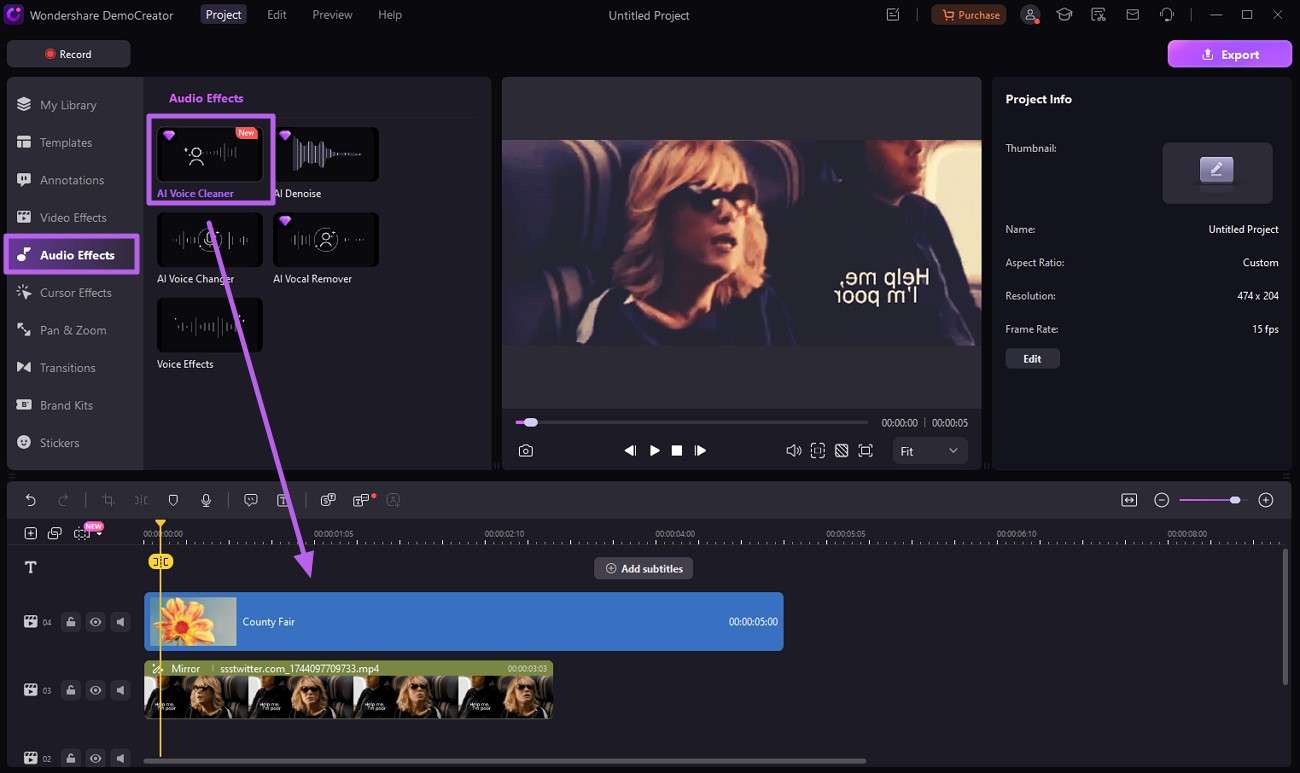
Following that, click the “Audio Effects” section located on the left and scroll until you find the “AI Voice Cleaner” feature. Once selected, move to the timeline and see the result of applying this function.
Step 5. Add a Transition for Extra Visual Appeal
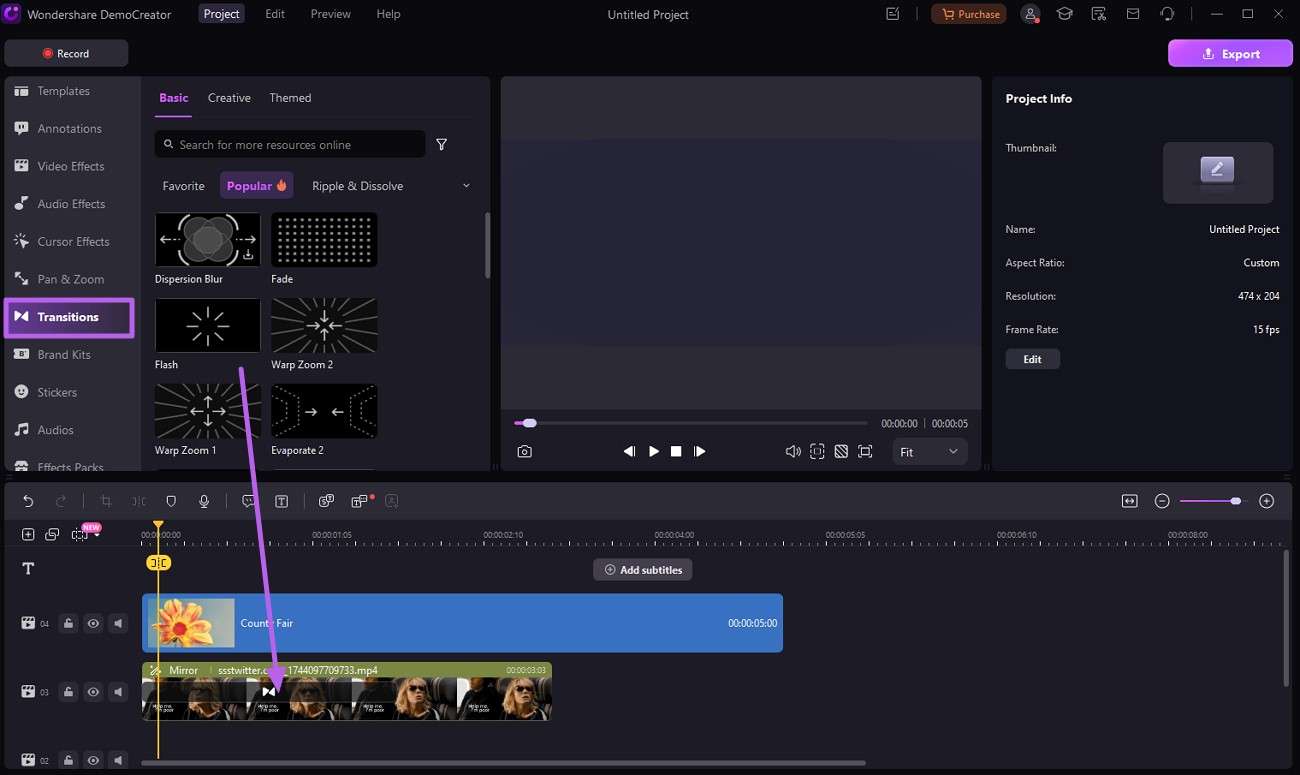
Then, make your content more engaging by going into the “Transitions” tab and selecting the one that you want. Simply drag it into your video timeline and put it where you feel it will suit the best.
Step 6. Perform More Modifications and Export the End Clip
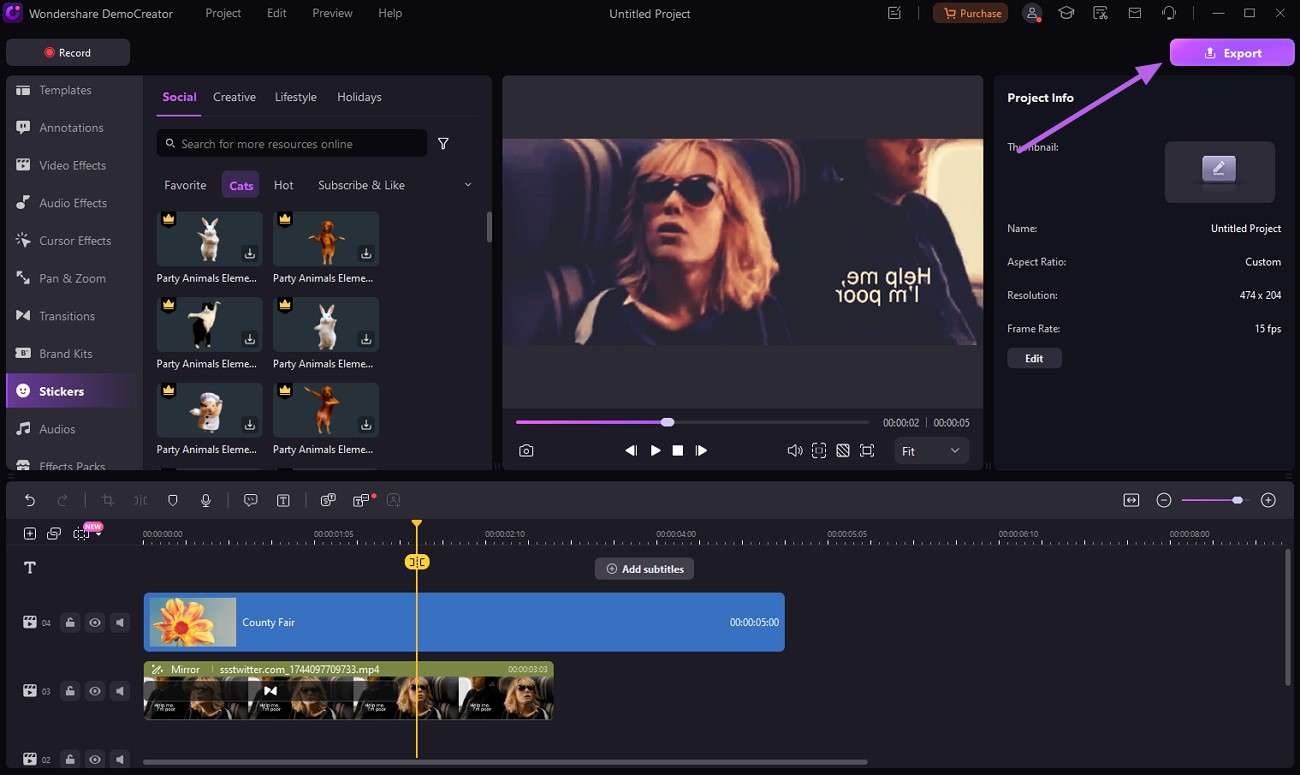
Finally, utilize the wide variety of tab and their options to make your content as stunning as possible. When your edits are complete, hit the “Export” button at the top-right corner to get the end result to post on X.
Conclusion
To sum it up, being able to view Twitter without an account is still possible through clever workarounds. These range from search engines and aggregators to online downloading tools. While each method has its limits, they offer quick access without logging in. Furthermore, if you’re creating content to share, don’t forget to polish it first. Wondershare DemoCreator is the perfect tool to edit videos and prepare them for a flawless X-ready presentation.