Turning YouTube videos into transcripts can be incredibly helpful. That is especially the case when trying to capture important information or create subtitles. With various tools available, it’s now easier than ever to turn video content into accurate text. It has turned out to be a boon for content creators, students, and other professionals.
In this article
- Part 1. Why Should You Transcribe YouTube Videos?
- Part 2. [General] Discussing The Variety of YouTube Transcript Methods
- Part 3. Getting YouTube Transcript: All Solutions Discussed!
- Bonus Tip. DemoCreator: A Unique Video Editing Facility To Make Videos Perfect
- Conclusion
- Frequently Asked Questions
Hot Articles
The ability to quickly convert YouTube to a transcript opens up numerous possibilities for enhancing productivity and accessibility. This guide will explore simple and effective methods that allow you to effortlessly transcribe YouTube videos into text in just a few steps.
Part 1. Why Should You Transcribe YouTube Videos?
You might be wondering why you need to put what is being said in videos into writing when you can just save the clips. Regardless of your role, transcription can enhance your experience and increase the accessibility of the video. Summarized below are some major reasons why you should consider YouTube transcripts:
- Improved Accessibility: Transcripts are a must for those with hearing impairments or those who prefer reading over listening to engage with video content. Regardless of ability, everyone can fully enjoy and understand the content of the targeted clip.
- Better Searchability: Search engines are not at all good at indexing video content directly, but having a transcript changes things. It makes your video more discoverable by turning speech into searchable text. The inclusion of the relevant keywords in the transcript can get your content rank a lot higher in the search results.
- Enhanced User Engagement: Offering a transcript can improve user experience quite a lot. Doing so let’s viewers follow along or revisit key points. It also encourages viewers to interact with the content more deeply, increasing the time spent on your video.
- Multilingual Reach: When the content of a video is put in writing, it can be easily translated. That allows your content to reach a broader and international audience. Your video content in multiple languages presents an opportunity to expand your global presence and reach different cultures.
- Content Repurposing: Utilizing translations to create articles or social media posts means your content is reaching beyond a single platform. That not only saves time but also ensures that your content reaches audiences who prefer different formats.
Part 2. [General] Discussing The Variety of YouTube Transcript Methods
A helpful approach before jumping into the actual steps is to understand the different ways people usually get YouTube transcripts. As long as you know your needs, a lot of methods are there to help you out. It is mainly about what you want: speed, accuracy, or control. The following is a quick look at the most common options to transcribe for YouTube:
- Automatic Transcription
The platform has the ability to generate subtitles for many videos using its native speech recognition. While it is a quick and convenient option, it is not always accurate. That is especially the case for videos with background noise, multiple speakers, or strong accents. Still, it’s a great starting point for anyone who needs a basic transcript without using extra tools.
- Third-Party Transcription Software (Automated)
Many online platforms offer advanced tools that can convert YouTube videos into text using AI. These tools often provide better accuracy and support for different languages. Moreover, customization options like timestamps or speaker labels are also there. Popular choices in this category include Otter.ai, VEED, and BlipCut’s AI-powered transcription tools. These are all designed to simplify the process for non-technical users.
- Manual Transcription
If maximum accuracy is your goal, typing out the transcript manually remains the most reliable method. Though it takes more time and effort, this approach gives you full control over wording, formatting, and details. That is especially useful for professional or legal content. People often combine this with automated results. It is a lot easier to edit the AI-generated text instead of starting from scratch.
Part 3. Getting YouTube Transcript: All Solutions Discussed!
In this section, we’ll go through the comprehensive solutions which can help you get a transcript out of a YouTube video. To start off, we will first discuss the basic technique of transcribing a YouTube video directly across the app itself.
Get Transcripts on YouTube Directly: How to Do It?
As mentioned above, the platform itself does offer a feature to get the content of a video in text. However, the fact remains that this function is not a powerful one. Despite that, this transcribe on YouTube button can be your only option in some scenarios. Detailed below are the instructions you need to follow to employ this option for transcripts:
Step 1
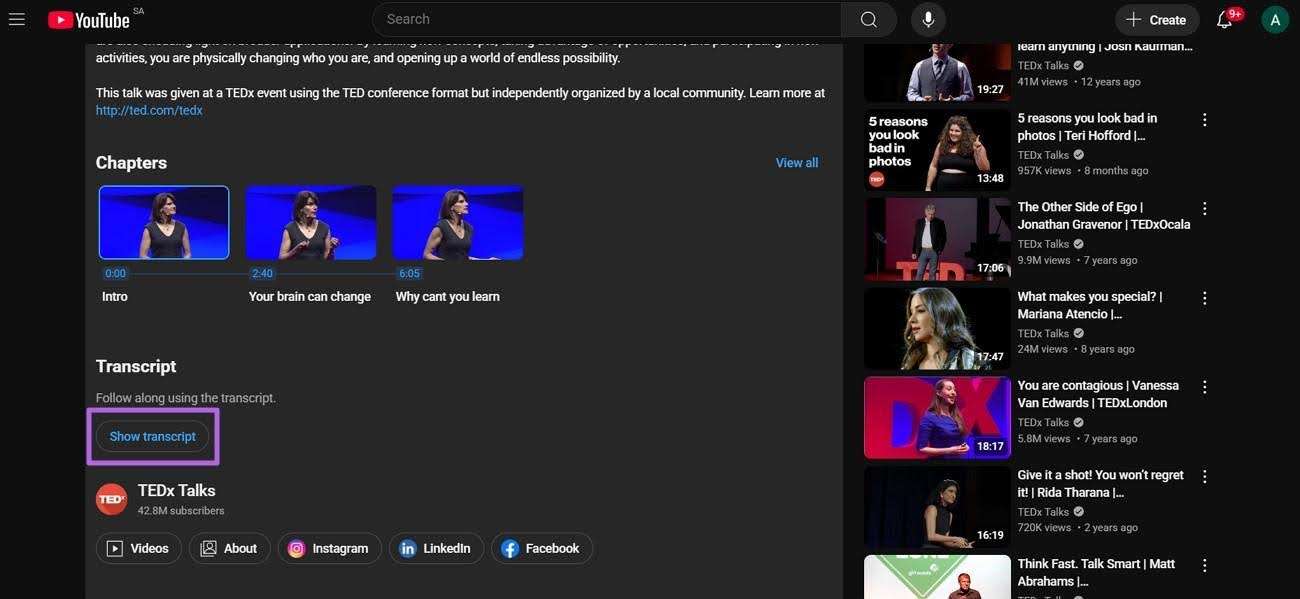
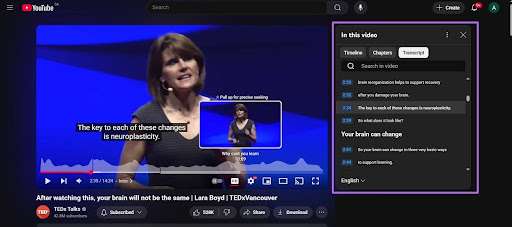
Launch the YouTube app or its web version and make your way to the targeted clip. Then, click the three dots (More options) below the video or next to the video title, depending on your device. Here, hit the “Show Transcript” button to get a transcript panel where you targeted content will be shown. All the text will have timestamps to let your browse the video with ease.
Step 2
Here, opt for any timestamp given in the panel to jump directly to that part in the video. If you'd like to paste or save the transcript in another location, the final step is to copy it manually.
Limitations of YouTube’s Native Transcript Feature
- Not Available for All Videos: Some videos don’t show the transcript option, especially if the creator has disabled captions or if the video is too new.
- Accuracy May Vary: Such captions often miss words or produce errors, especially with unclear audio or accents.
- No Export Option: YouTube doesn’t offer a download or export button—you must copy everything manually.
[Online Alternatives] Get Your YouTube Transcript Easily With Top Options
Apart from the common methods mentioned, there are also several web options for this purpose. These online tools often work directly through a browser, allowing users to generate transcripts quickly with just a link. Explored in detail below are 5 of these accessible tools that offer practical ways to transcribe on YouTube:
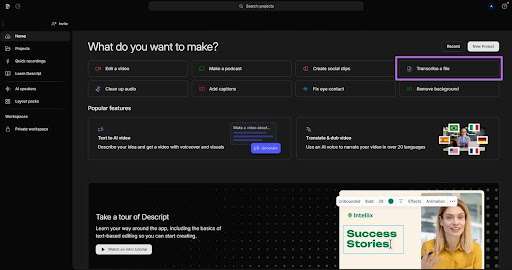
As an AI-powered tool, Descript simplifies the process of converting YouTube videos into text. It permits users to make quick modification to the audio and video content via a text-based interface. That allows them to streamline the transcription and editing workflow. Moreover, this ability makes it particularly useful for content creators, educators, and professionals. For those seeking to transcribe YouTube video content efficiently, the following guide is a great choice:
Step 1
Get to the Descript web tool using a secure browser and make sure you are logged in. Now, tap the “Transcribe a file” option and upload the targeted YouTube video to proceed.
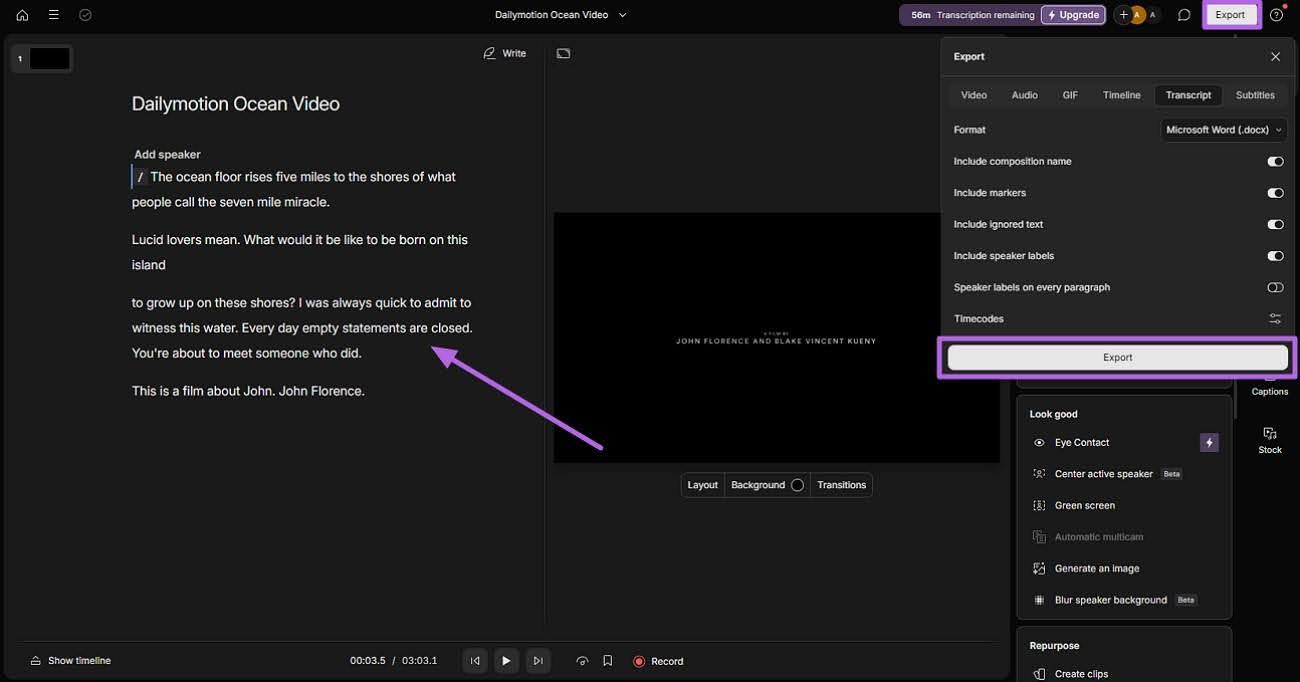
Step 2
As the clip uploads, the transcript will be generated automatically for your targeted video. Following that, tap “Export” and move to the “Transcript” tab to choose the desired format and “Export” it.
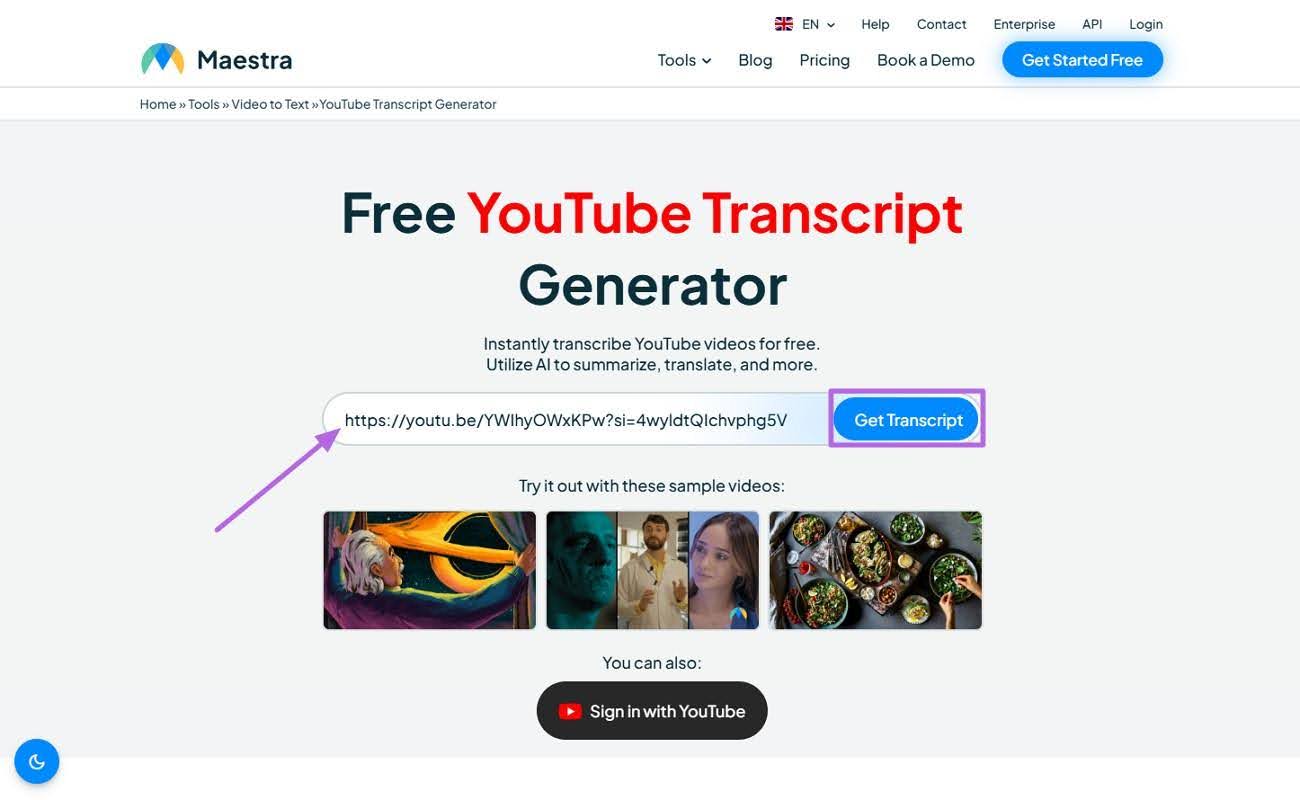
Famous for its support for 125+ languages, Maestra is a robust tool for video transcription. It is designed to make YouTube transcripts a breeze. This web tool is ideal for global content creators aiming to enhance accessibility and reach a broader audience. Beyond transcription, Maestra offers features like subtitle generation and voiceovers. Moreover, its real-time translation feature streamlines the content localization process. Get your YouTube transcript via Maestra via the following guide:
Step 1
Make your way to Maestra's YouTube Transcript Generator on your favored web browser. Here, provide the URL of the video you want to transcribe and utilize “Get Transcript."
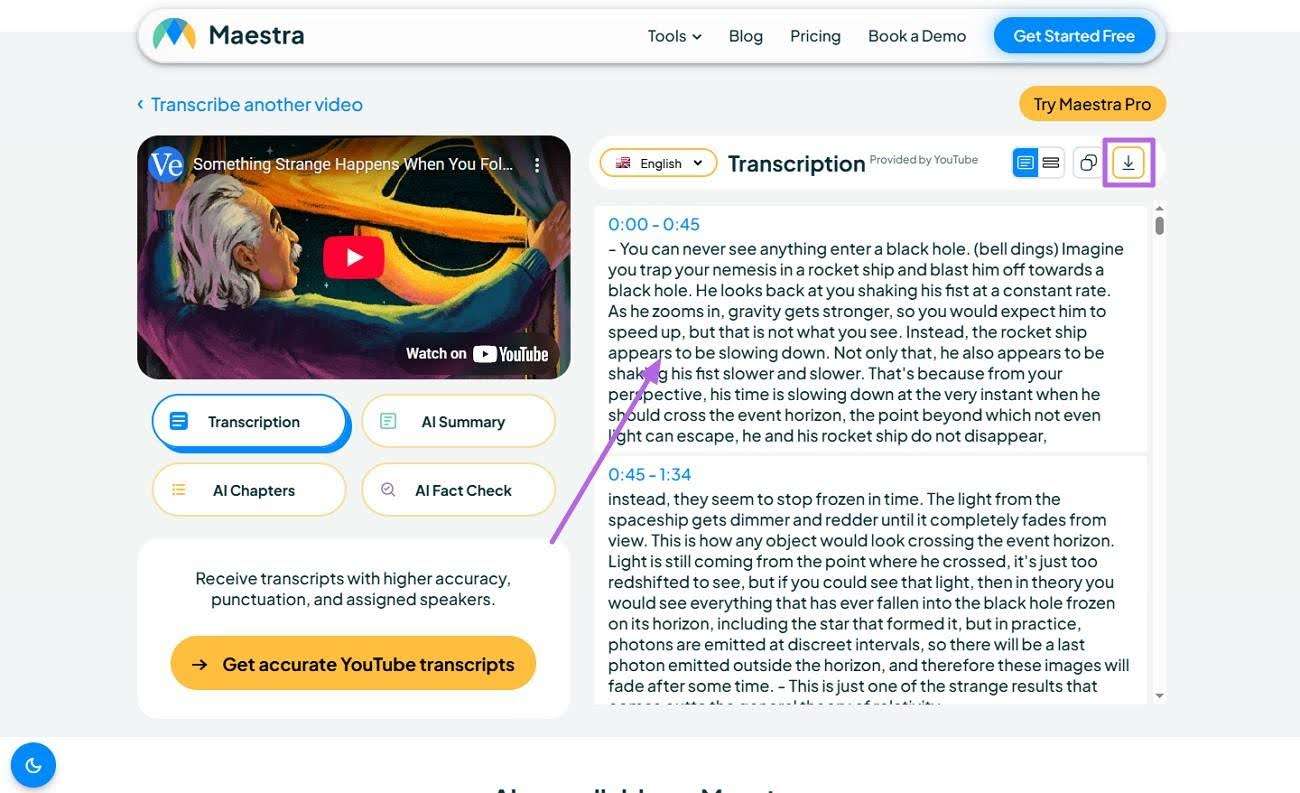
Step 2Within a few moments, you will see the transcript of the targeted clip on the next screen. While you can copy the text, you will need a paid version to “Download” it in any format.
With its YouTube to transcript tool, users can easily obtain the content they desire from videos. NoteGPT is a platform that has the ability to get YouTube clips into text with remarkable ease. Not to mention it is particularly beneficial for learners and freelancers. They can get transcripts, summaries, and even mind maps from video content. Adhere to the following instructions to use NoteGPT for the purpose of transcribing YouTube:
Step 1
Employ a secure web browser to navigate to the YouTube Transcript Generator of NoteGPT. Here, paste the copied URL of the targeted video into the provided field and tap the “Generate Transcript” button.
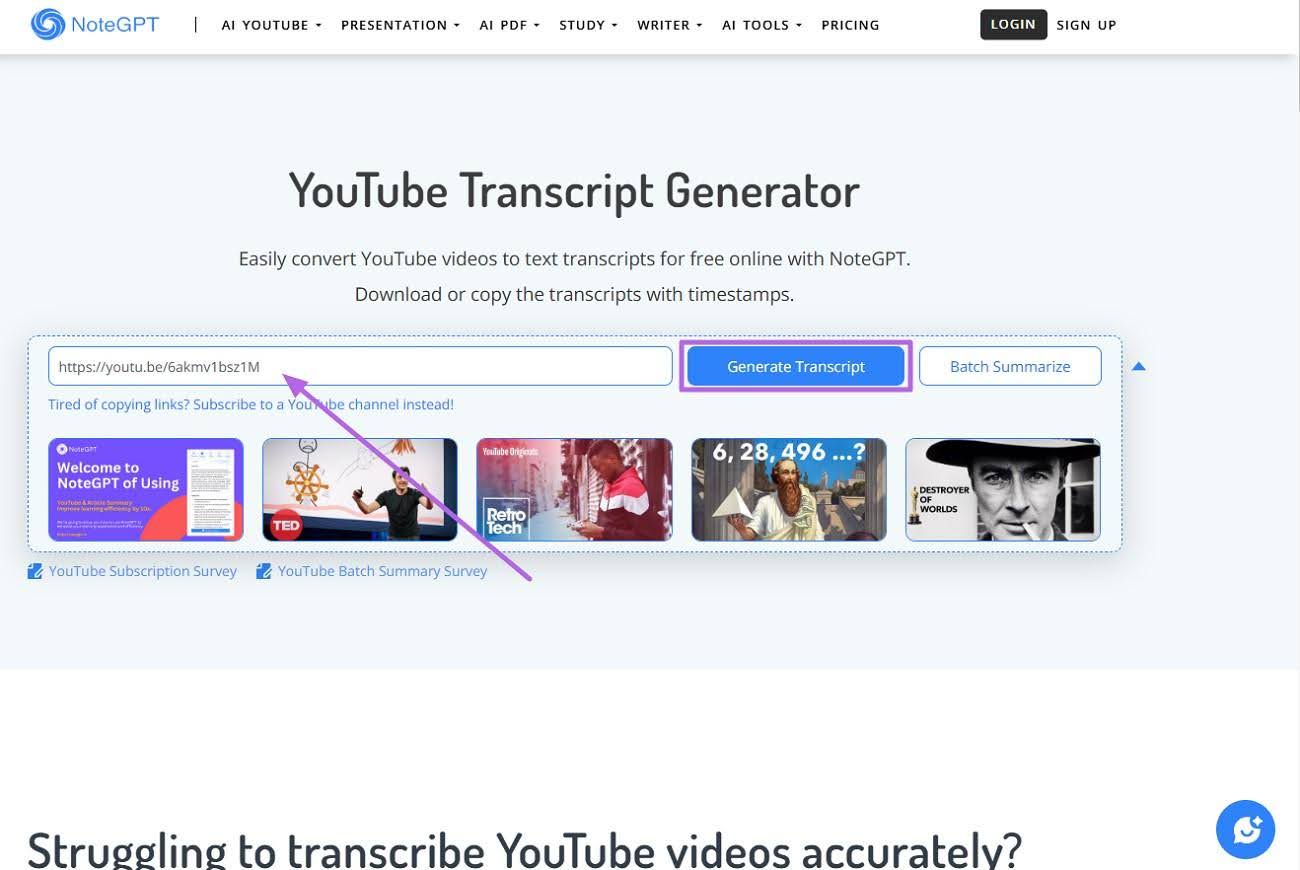
Step 2
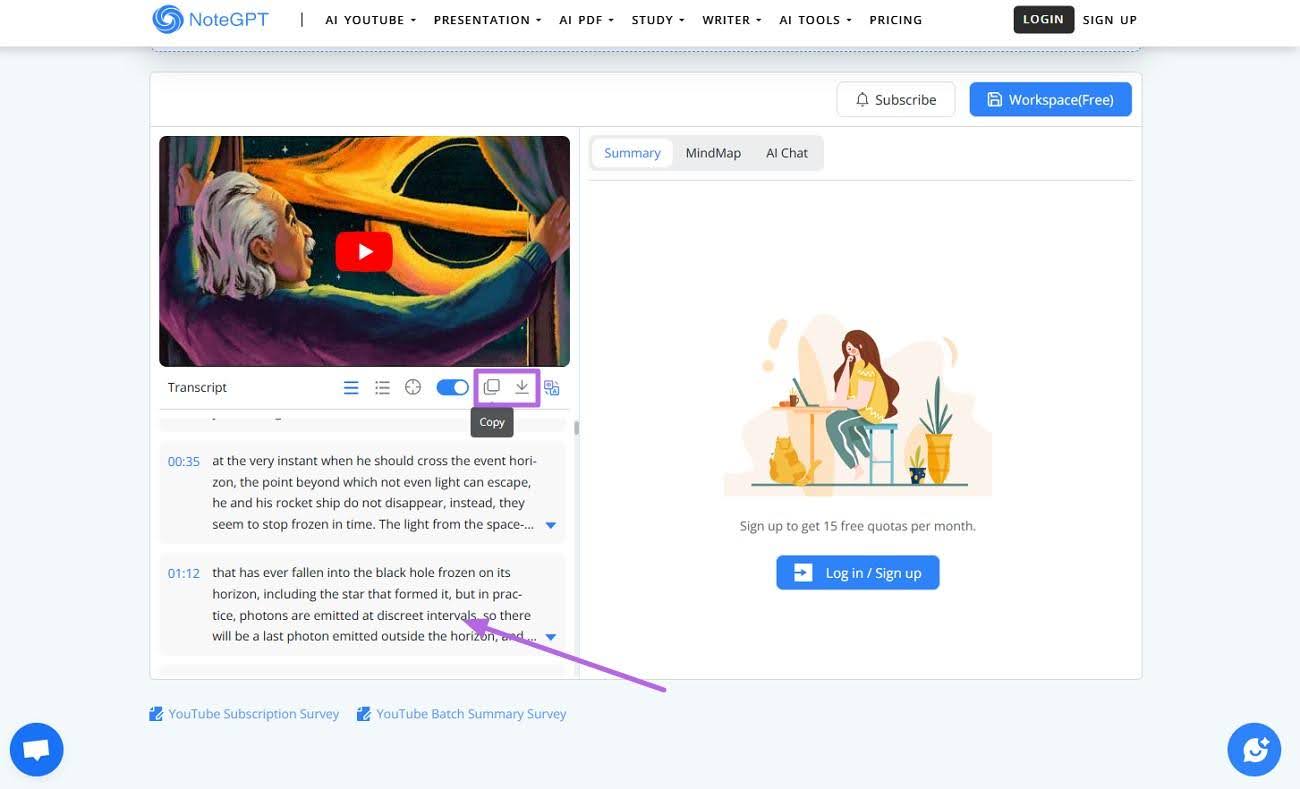
As soon as you have result on your hand, review it for accuracy to make the required edits. Finally, choose to “Download” the transcript in your preferred format or “Copy” it directly for immediate use.
A dedicated web tool for this specific purpose, it is popular among users to get their YouTube clips into text form. It is designed with features like auto-scrolling and multi-language support. Furthermore, it has the ability to jump to specific video positions. This online tool caters to content creators and students to provide transcribe for YouTube services. The following guide can help users get a clip turned into text format:
Step 1
Utilize a web browser on your device to access the main page of YouTube to Transcript tool. Following that, insert the copied URL of the desired YouTube clip and opt for the “Get Free Transcript” button.

Step 2
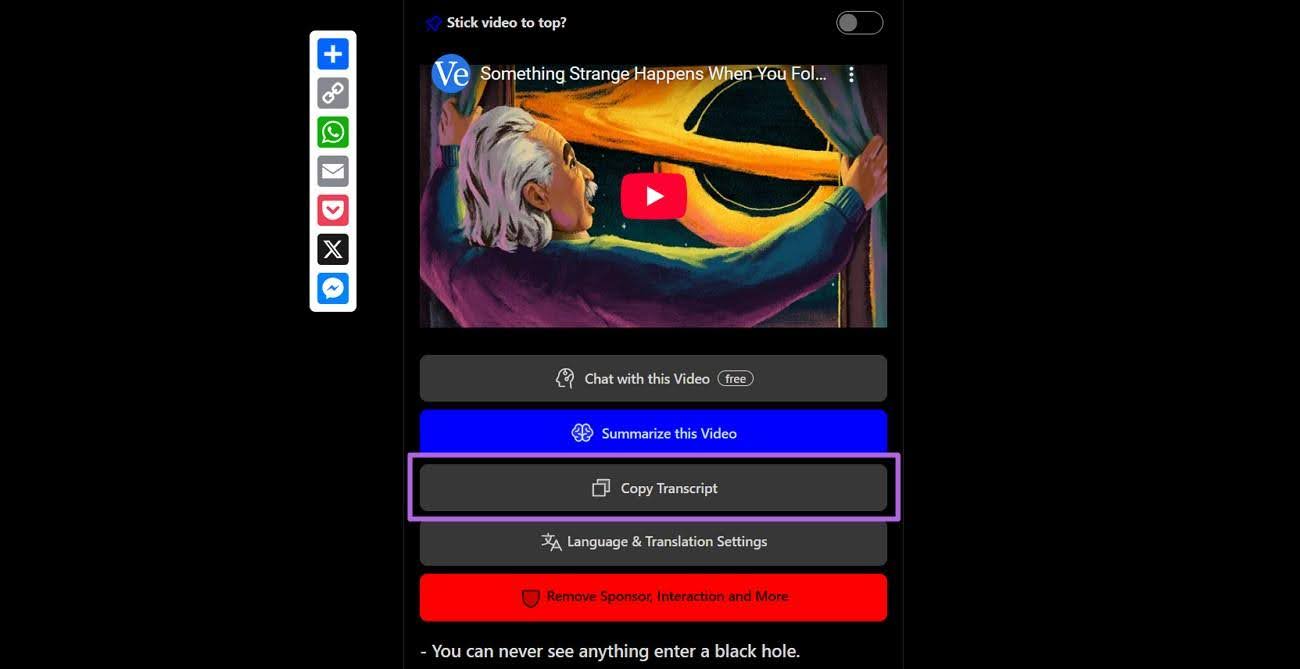
Once the transcript is generated, you can read through it to confirm it is fully accurate. Afterward, use the “Copy Transcript” button to get the content and save it for future use in a document.
Bonus Tip. DemoCreator: A Unique Video Editing Facility To Make Videos Perfect
Before wrapping up, it’s worth highlighting an extra resource that goes beyond just transcription. Sometimes, you need to turn YouTube content into something even more impactful. Doing so involves editing and enhancing the video itself. That’s where the powerful tool Wondershare DemoCreator comes in handy if you want to create engaging content. It ensures that using YouTube transcripts is not the only resource at your disposal.
DemoCreator offers a unique blend of screen recording and video editing features. That makes it ideal for anyone looking to polish or personalize YouTube-related content. Using this program lets you record, trim, annotate, and enhance videos with precision. Its drag-and-drop interface supports all skill levels, and users can easily add effects, text, or transitions. With these, they get to bring clarity and creativity to any project.
What Makes Wondershare DemoCreator a Top Video Editor
- AI Text-Based Editing: You get to edit your video just by working with the transcribed text, making the entire editing process much faster. You can cut or rearrange scenes by deleting or moving the text instead of trimming clips manually.
- AI Subtitle Generator: It automatically adds accurate captions to your video based on the audio to let your audience follow along. That is especially useful for tutorials or content aimed at global viewers.
- AI Voice Changer: The ability to alter your voice to different tones and styles is something of a highlight of this program. You can opt for it to add creativity or privacy to your videos without needing external help.
- AI Video Object Remover: This feature gets rid of unwanted elements like background distractions or logos from your video. It works smoothly and keeps the overall quality high, saving hours of manual editing.
Detailed Guide to Edit Your Video Projects to Make Them Perfect for Sharing Across Platforms
For anyone working with YouTube clips or creating fresh content based on them, DemoCreator acts as a reliable companion. Employ the following elaborate instructions to quickly modify your videos to take them to a new level:
Step 1Open the Video Editing Tool to Kick Things Off
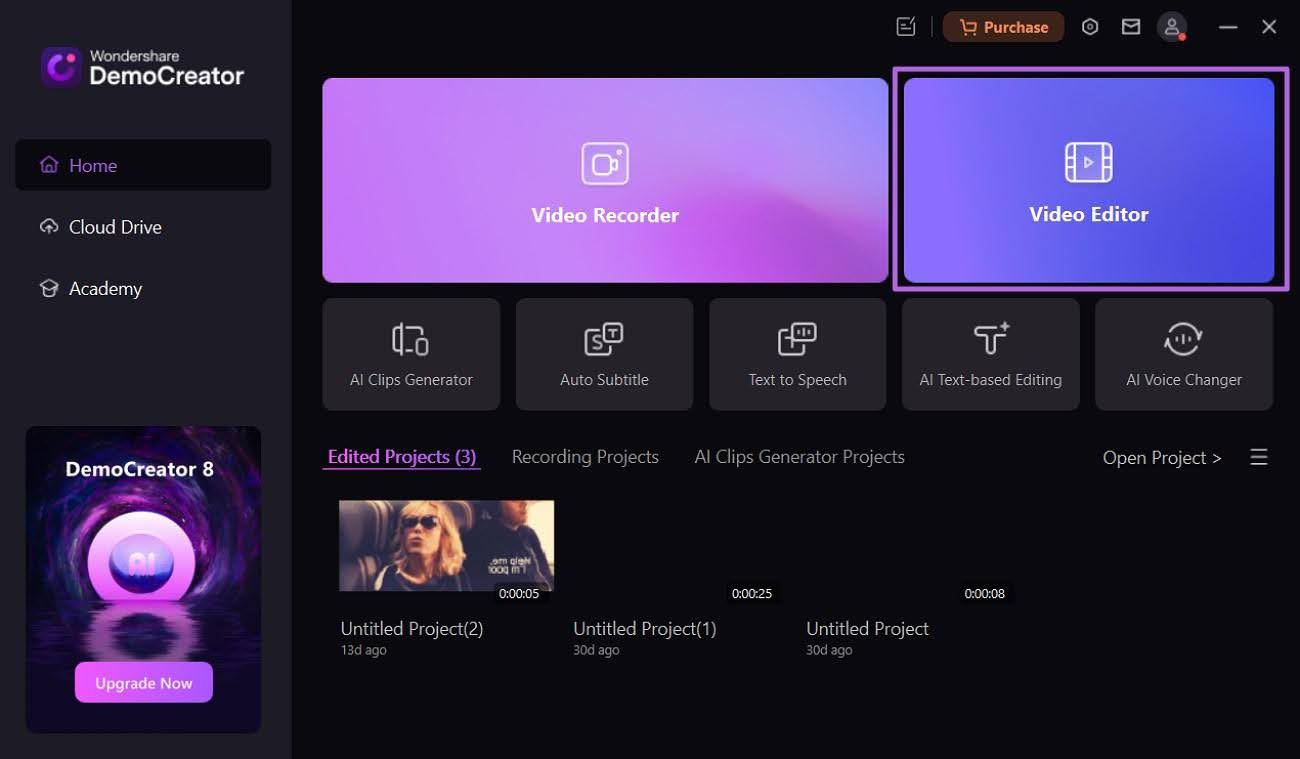
Get started by running DemoCreator on your computer and opting for the “Video Editor” option. Following that, tap the “+” sign to import the desired clip you want to take to the next level.
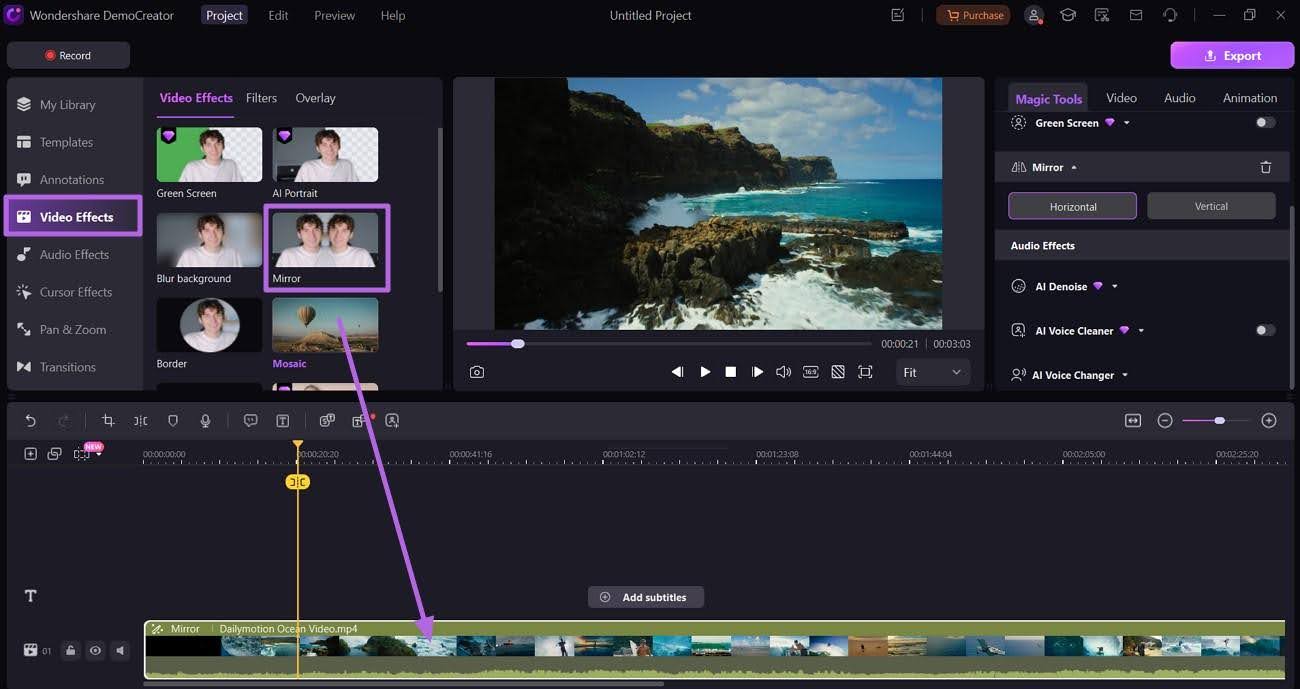
Step 2Apply the Mirror Effect for a Unique Touch
Once the video loads, drag it down to the timeline and head toward the “Video Effects” menu. From there, choose an option like “Mirror” and place it right onto the timeline near the section you want to alter.
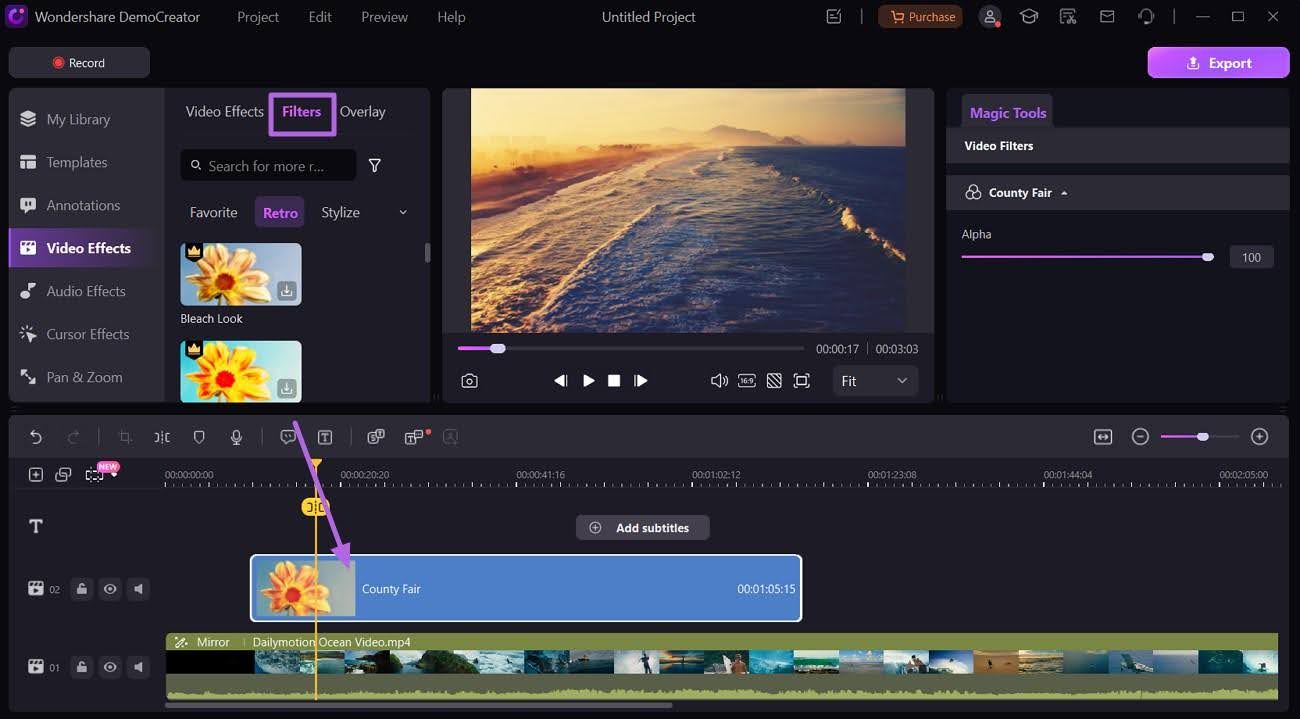
Step 3Add a Filter That Complements Your Targeted Clip
Next, approach the “Filters” tab within the same menu on the left-hand side. From that section, select a filter that enhances your visual tone and carefully drag it to the desired part of the timeline.
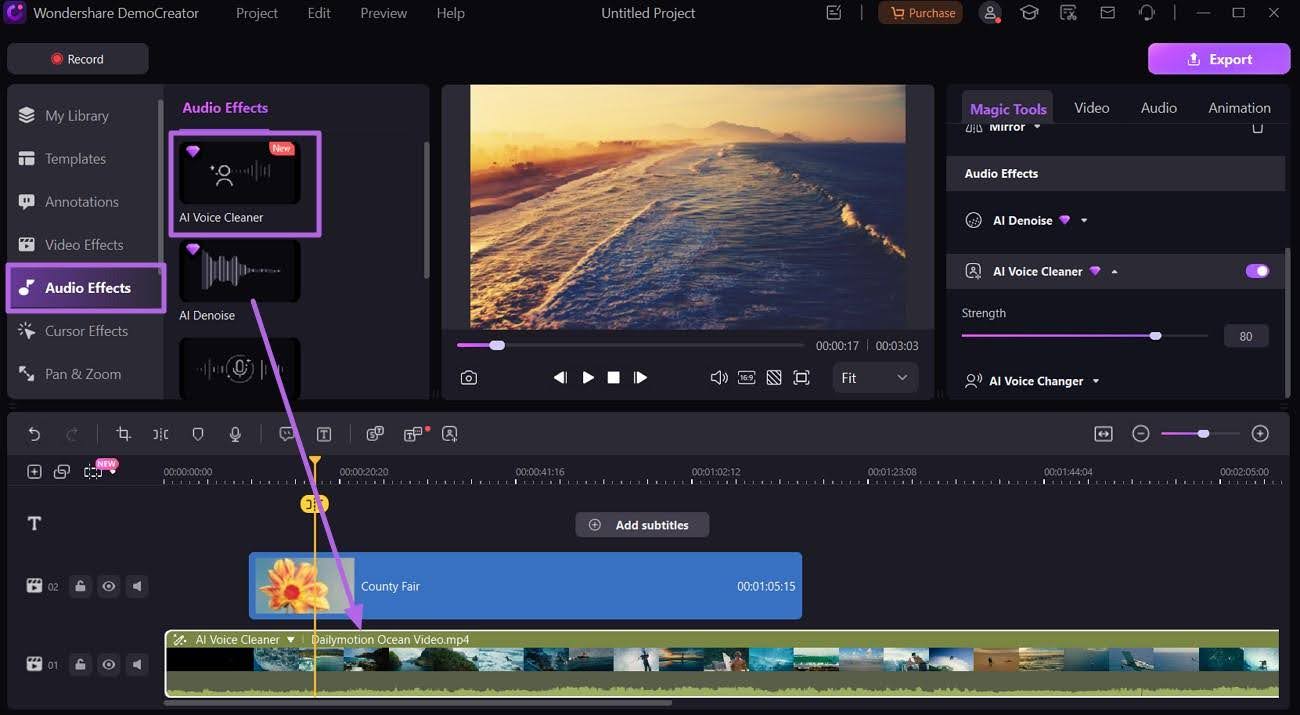
Step 4Use the AI Voice Cleaner to Get Rid of Impurities in the Sound
After applying the visuals, move over to the “Audio Effects” section and scroll until the “AI Voice Cleaner” comes into view. Once you locate it, get it to the editing time and erase all unwanted sound to smoothen the clip.
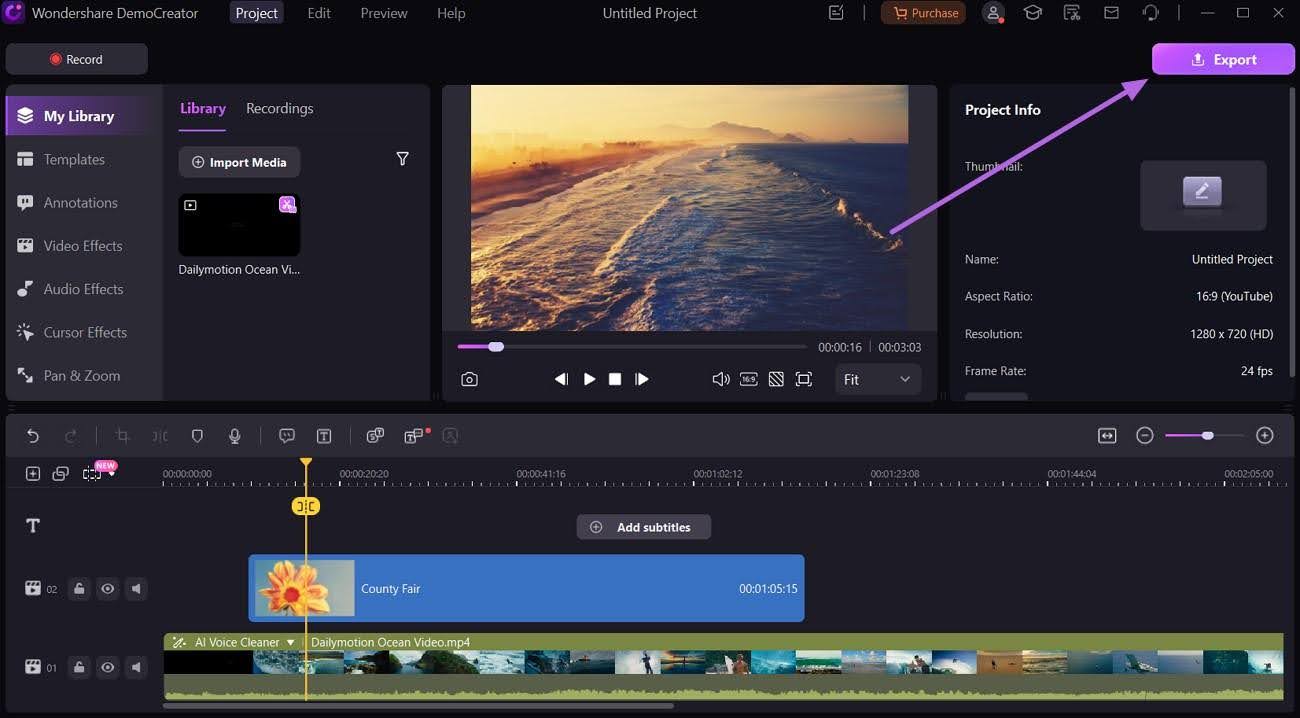
Step 5Make Final Adjustments and Save Your Video
Finally, explore the remaining tools and features to fine-tune every detail of your project. After everything looks perfect, click on the “Export” button in the top-right to save your video.
Conclusion
In summary, transcribing YouTube videos opens the door to better accessibility and content reuse. You can do that via YouTube’s native tool or advanced platforms like Descript or Maestra. Most of these options are plenty for all needs. For those wanting to aim beyond YouTube transcripts by producing engaging videos, DemoCreator is the answer. From text-based edits to creative effects, it helps turn ideas into compelling visual stories with ease.
Frequently Asked Questions
FAQ
-
1. Can I use YouTube transcripts to create quizzes or educational materials?
Absolutely! Educators often do that to develop course notes and supplementary materials for their lessons. Doing so enhances the learning experience of students by catering to various learning styles. -
2. Why do some YouTube videos lack transcripts?
Not all videos have transcripts due to factors like the creator disabling captions or the video's age. Sometimes, YouTube's automatic captioning system has not processed the content yet. Additionally, some videos may not meet the criteria for automatic transcription. -
3. How can I clean up messy YouTube transcripts?
Tools like transcriptcleaner.com can help refine transcripts by removing timestamps. You can use it to get rid of filler words and formatting issues. Using such tools makes them more readable and suitable for analysis or presentation. -
4. Can I generate a transcript for a video without captions?
Opting for tools like NoteGPT can let you generate transcripts for videos even if YouTube hasn't provided captions. That is a core part if you want to ensure all video content is transcribed to the text.