DemoCreator User Guide
How to use Wondershare DemoCreator? Learn the step by step guide below
DemoCreator User Guide
-
Get Started - Mac
-
Video Recording - Mac
-
Video Editing - Mac
-
Keyboard Shortcuts - Mac
-
Audio Recording - Mac
-
DemoCreator Effects - Mac
-
Export & Share - Mac
-
Audio Editing - Mac
-
New Demo Mode - Mac
DemoAir User Guide
-
DemoCreator Cloud Service - Get Started
-
Video Creation Mode
-
Export&Share
FAQs
Video Recorder - Screen&Camera Recording
Screen & Camera Recording mode records the screen, system audio, microphone, and camera simultaneously.
In this guide, you'll learn:
- Customize Recording Settings
- Export Configuration
- Schedule Recording Settings
- Start/Finish Recording
- Screen Drawing Tool
- Teleprompter
- Supported Virtual Cameras
- How to Record Zoom Meetings
- AI Beauty Filter
- AI Voice Cleaning
- Screen Drawing Tool
- Show Hotkeys
- Hotkeys Tips
- Camera Border
1. Customize Recording Settings
① Customize Recording Area: Choose to record the full screen, custom region, or social media dimensions.
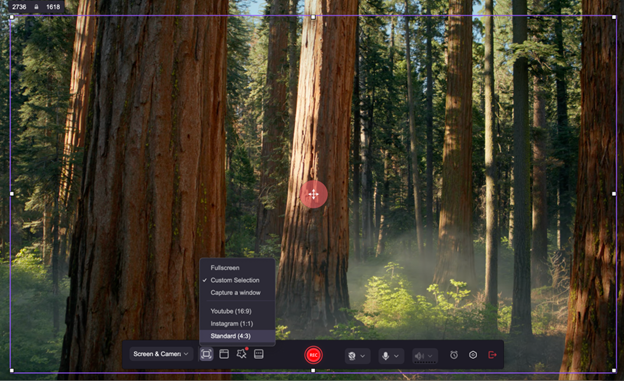
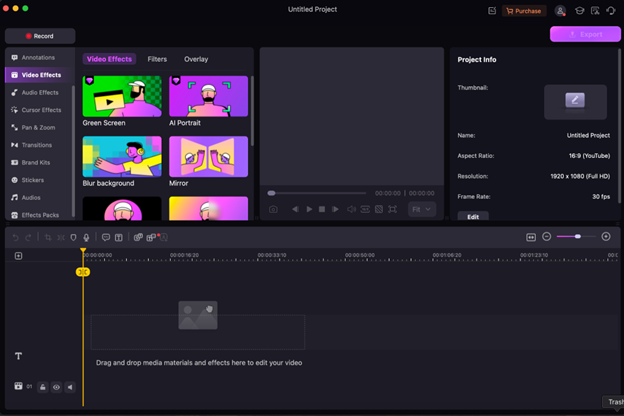
② Set Microphone & Camera Inputs: Choose other inputs to record along with the screen. Options include camera, microphone audio, and system audio. Check the link of your system sound, microphone, and camera. Customize the camera and audio to the best condition. And under the camera recording, you are allowed to choose Circle, Rectangle, AI Portrait, Mirror, and AI Beauty Filter.

2. Export Configuration
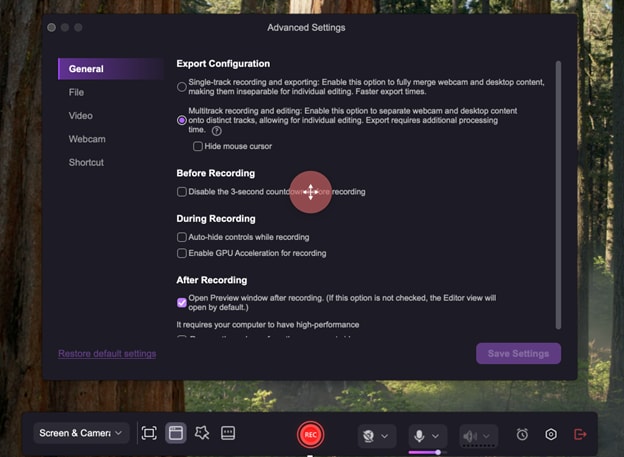
There are 2 export configurations: Single-track recording and Multitrack recording
① Single-track recording (Quick Export): Enable this option to merge webcam and desktop content fully, making them inseparable for individual editing. Faster export times.
② Multitrack recording (Editable Tracks): Enable this option to separate webcam and desktop content onto distinct tracks, allowing for individual editing, Export requires additional processing times.
In addition, you can modify your recording presets in settings to make your recording experience more convenient.
3. Schedule Recording
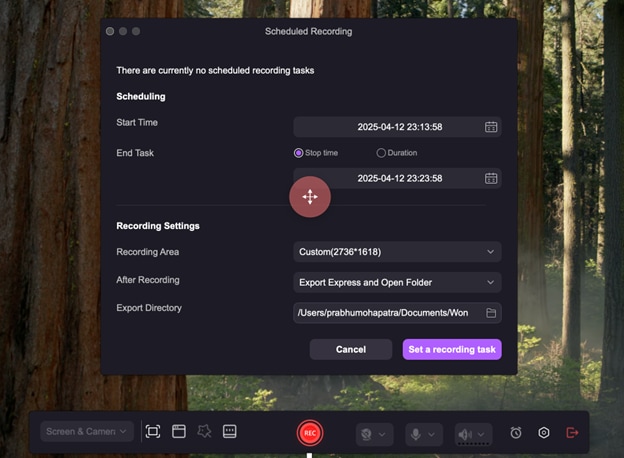
The "Scheduled Recording" interface allows you to work on the actual task by setting the start/end timings of your recordings and making additional adjustments in Recording Settings. Click on "Set a recording task" when you are satisfied with the arrangements.
 Secure DownloadSecure Download
4. Start/Finish Recording
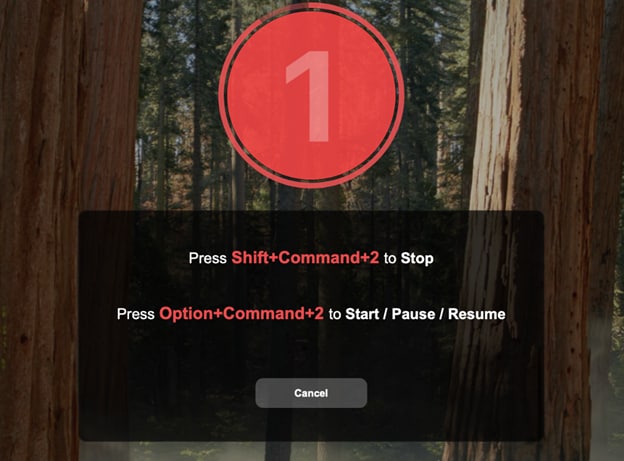
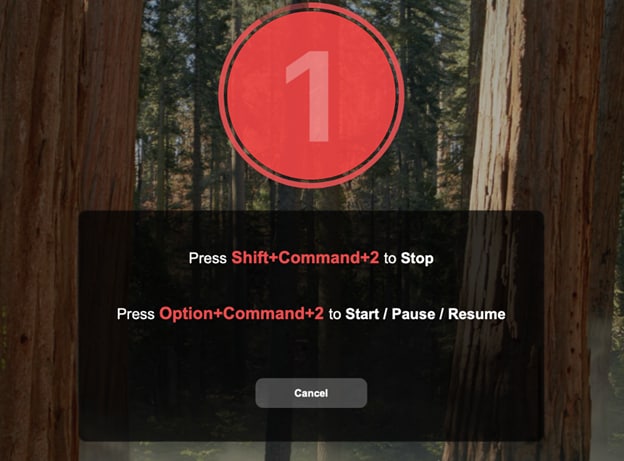
① Start: After you've finished all the settings, click the red "Rec" button or press Option+Command+2 to start recording.
② Finish/Pause: If you've finished recording, press Shift+Command+2 to stop. Press Option+Command+2 to pause/resume a recording.
5. Screen Drawing Tool
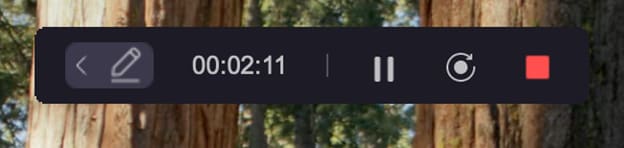
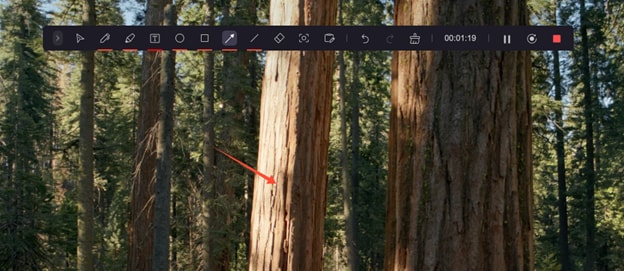
The Screen Drawing Tool helps you to draw while recording. To open it, press the pencil icon. The screen drawing tool contains a pen, Highlight, Spotlight, Whiteboard, etc. You can quickly write and highlight while recording.
6. Teleprompter
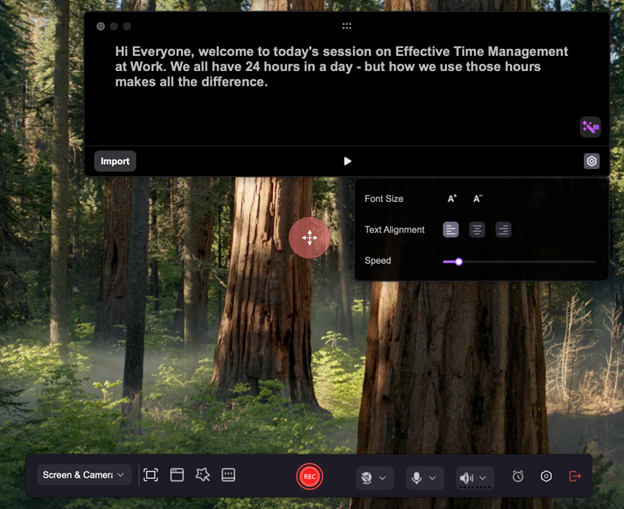
1. Type your script.
2. Preset your script’s Font Size, Text Alignment, and play Speed in the setting board.
3. Try the AI function to optimize your script.
4. Click “REC” to start recording.
5. Play teleprompters. Now you can record videos with teleprompters to make your presentation videos more professional.
Secure DownloadSecure Download7. Supported Virtual Cameras
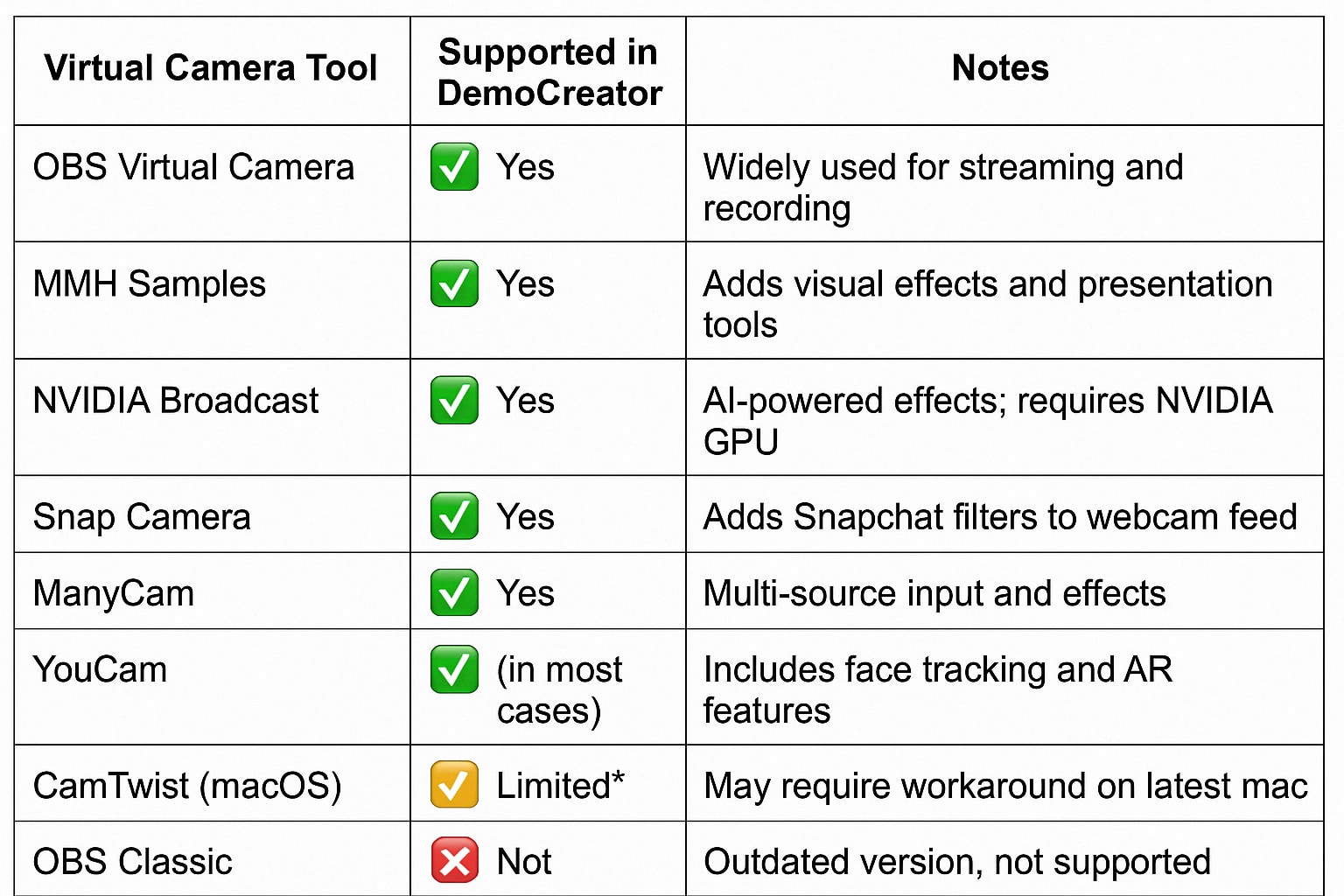
DemoCreator supports virtual camera input from popular tools like OBS, mmhmm, XSplit, NVIDIA Broadcast, Snap Camera, and ManyCam. This feature lets you create professional-quality recordings for video platforms, video conferencing apps, and distance learning tools. To use a virtual camera in DemoCreator, simply select the third-party virtual camera as your webcam input.
DemoCreator Virtual Camera Tool Compatibility
8. How to Record Zoom Meeting
Step 1. First, check if your system sound is the same as the selected zoom output sound.
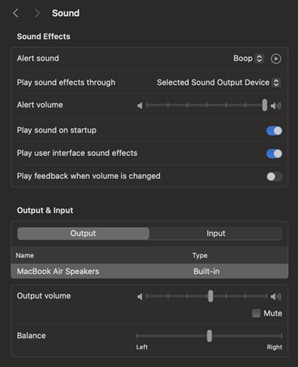
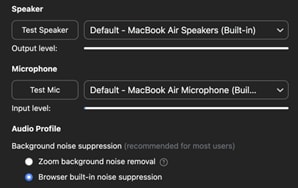
Step 2. Launch DemoCreator, and select Video Recorder. Change the recording area to record the Zoom meeting. Then click the red button or press F10 to start recording.
Step 3. When you’ve finished the recording, then it will automatically switch to the video editor panel. You can preview your recording in the preview window before exporting.
9. AI Beauty Filter
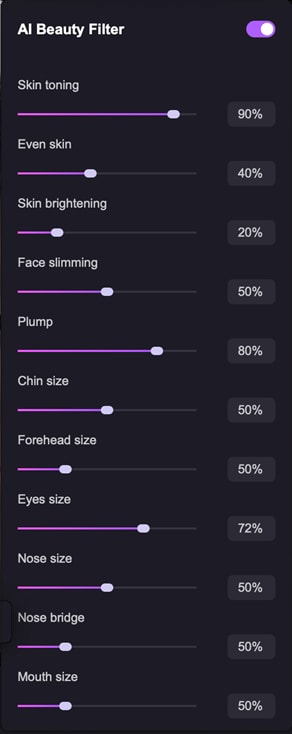
Our AI Beauty Filter can enhance your appearance for more stunning social media presence.
Step 1. Click the Camera icon to enable AI Beauty Filter.
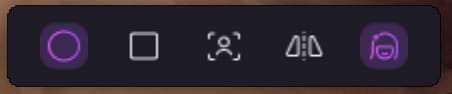
Step 2. There are many setting items that you can adjust to elevate your appearance, including Skin toning, Skin brightening, Face slimming, Chin size, Forehead size, Eyes size, Nose size, and Mouth size.
Step 3. When you’ve finished the recording, then it will automatically switch to the video editor panel. You can preview your recording in the preview window before exporting.
10. AI Voice Cleaner
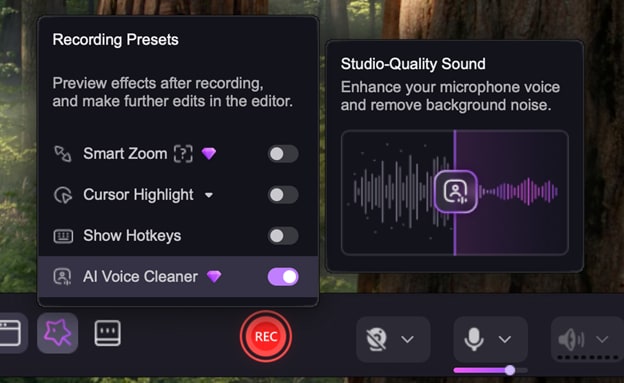
The AI Voice Cleaner feature helps you reduce background noises like the sounds of wind, cars, and people, and enhance the quality of your own voice. Leverage the power of AI to elevate the viewing experience with audio that is clean, pure, and professional.
Follow these steps to enable this feature:
Step 1. Click the “Magic Tools” icon in the Screen & Camera mode. Then enable the feature before recording.
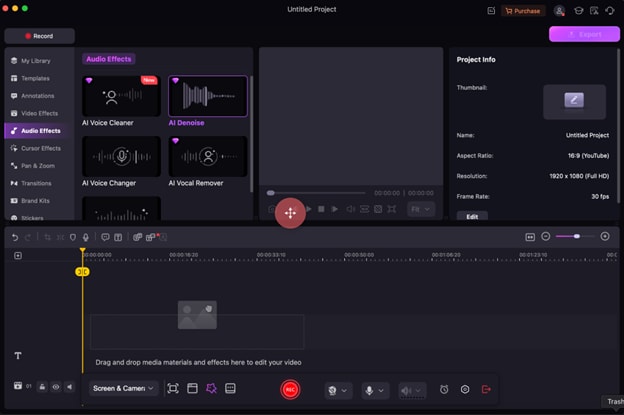
Step 2. Once you’ve finished the recording, you can adjust the noise reduction level at the control panel in DemoCreator’s video editor.
11. Cursor Highlight
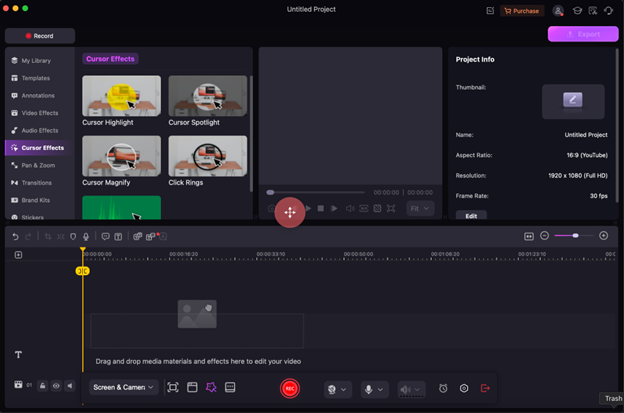
Now you can enable the Cursor Highlight feature to catch your viewers’ attention before recording. No need to add cursor effects to your videos during post-editing. Follow these steps to record training videos easily:
Step 1. Click the “Magic Tools” icon in the Screen & Camera mode. Enable the Cursor Highlight feature and select a color.
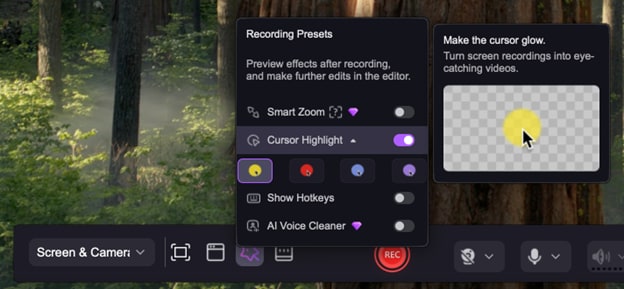
Step 2. Click “REC” to start recording.
Step 3. Once you’ve finished recording, the selected cursor effect will be added to your video automatically. You can adjust relevant settings at the control panel in DemoCreator’s video editor.
12. Show Hotkeys
Now you can enable the Show Hotkeys feature before recording in the Screen & Camera mode. Automatically display and highlight the hotkeys you use in your software training videos to facilitate understanding. Follow these steps to experience this convenient feature:
Step 1. Click the “Magic Tools” icon at the control panel in the Screen & Camera mode. Then enable the Show Hotkeys feature.
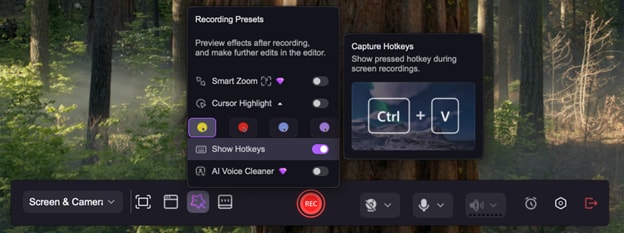
Step 2. Click “REC” to start recording.
Step 3. After recording, Hotkeys tips are added to your videos automatically. You can adjust relevant settings at the control panel in DemoCreator’s video editor.
13. Camera Border
When you record your camera, you can add a camera border to elevate your presence. It’s especially useful for creating training and knowledge-sharing videos where your delivery can benefit from your image. Here are the steps to enable this feature:
Step 1. Turn on your camera and click the “Circle” or “Rectangular” icon at the floating panel to select a camera border.
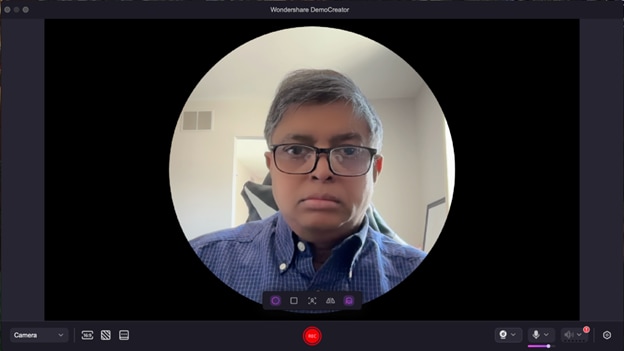
Step 2. Click “REC” to start recording.
Step 3. After recording, you can modify the camera border and adjust relevant settings as needed in DemoCreator’s video editor.
Secure DownloadSecure Download